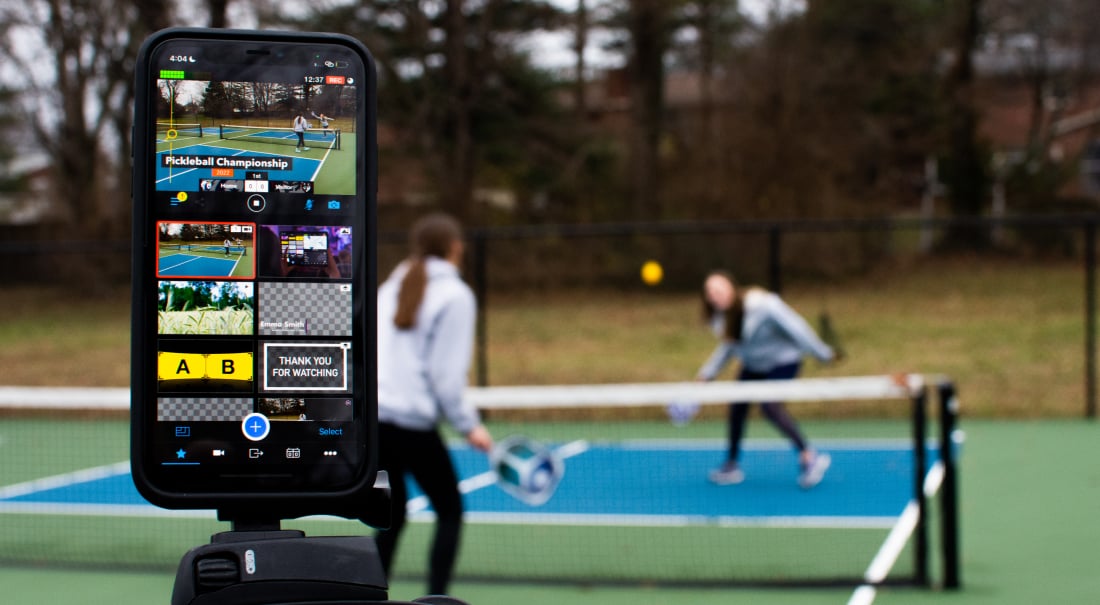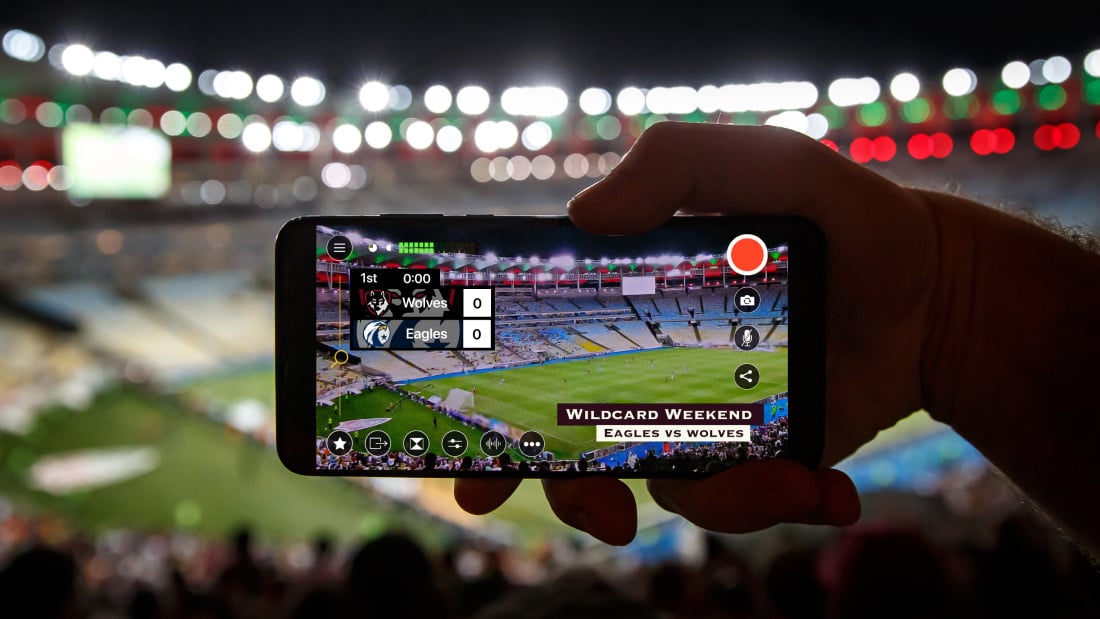
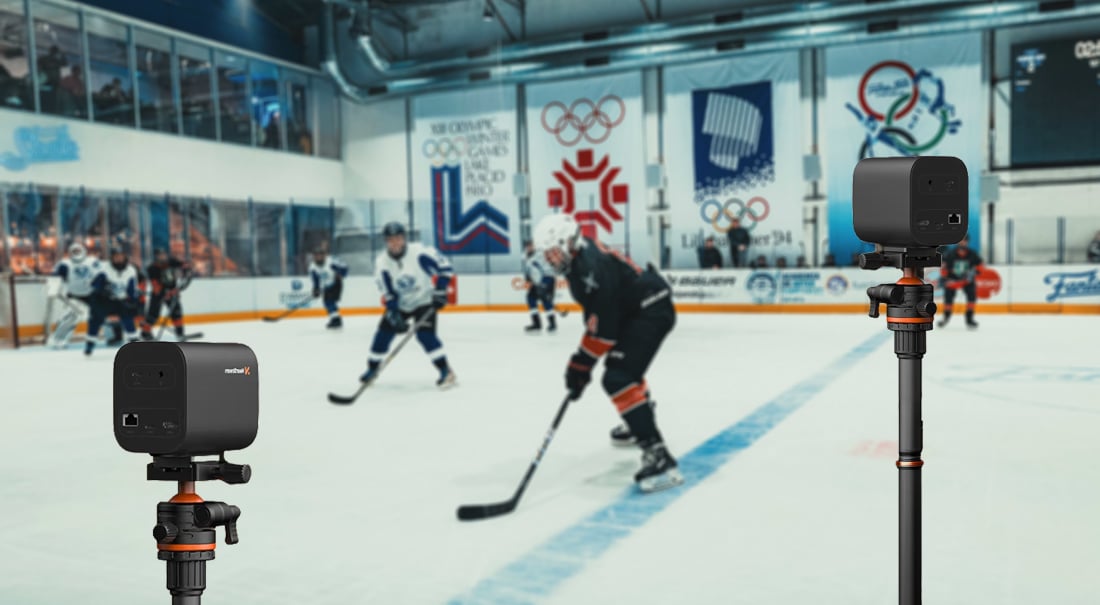
More camera angles mean more professional-looking productions.
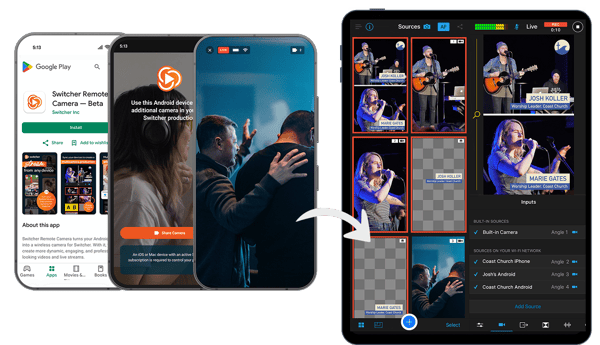
With the new Switcher Android Remote Camera App, you can wirelessly connect any compatible Android device as a live camera angle in your Switcher production (running on iOS or Mac).
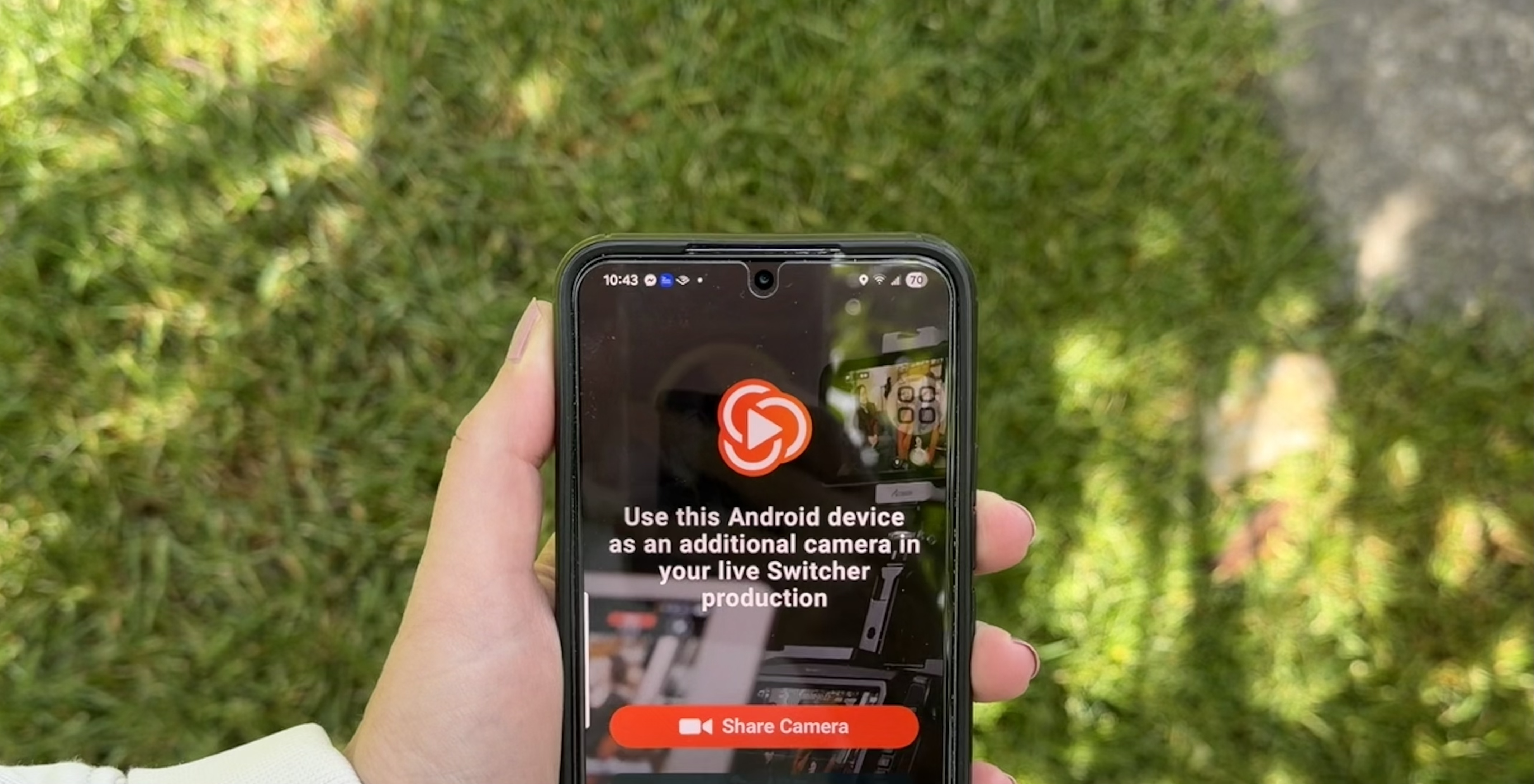
Simply install the app, connect to the same Wi-Fi network, tap “Share Camera,” and your Android shows up as a source.
Whether you're a current Switcher user looking to expand your rig or someone who's been waiting for a live streaming solution that actually works with your Samsung, Google Pixel, Motorola or other Android devices, here's everything you need to know.
Switcher’s Android multi-camera app: How the setup actually works
Switcher’s Android remote camera app turns your Android phone or tablet into a wireless camera source for a larger live production.
Instead of streaming solo from one device, you're feeding your Android's camera into a multi-camera setup. A separate mobile device runs Switcher, which handles the scheduling, production, and multistreaming the broadcast.
Switcher’s live streaming app lets you, the director, control which camera angles broadcast live. Each Android device you connect joins the production as a camera angle, while your iPhone, iPad, or Mac runs the entire show.
You can connect your production hub (any Apple device) to remote cameras (your other mobile devices) over a shared Wi-Fi network in under five minutes. From there, each Android phone or tablet appears in the Inputs panel as a camera feed, just like any other source.
Now you’re ready to change camera angles live with a single tap!
What's in the first release of Switcher’s Android app for remote camera control?
- Live indicator: When your Android camera is selected and active on your stream, a visible "Live" indicator appears on the device. No more guessing whether a camera is ‘on air’.
- Front and rear camera flip: Switch between front and rear cameras directly from the app. Useful when your setup calls for a different angle.
- Updated UI: The Remote Camera interface has been refreshed for cleaner, more intuitive use.
- Android 14, 15, and 16 support: The app now works across the latest three versions of Android, on any Android device.
- Tablet support. Works on Android tablets too, not just phones.
-
Same analytics, same display: Your Android shows up in your production hub the same way any other camera source does - same analytics, same controls.
How to remotely control an Android phone camera for live streaming?
Getting connected only takes about two minutes. Here's how:
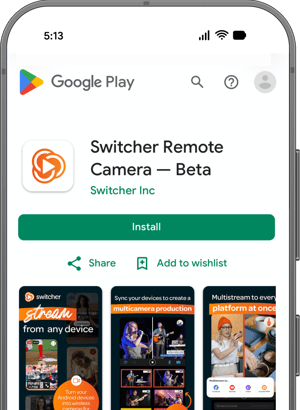
- Download the Switcher Remote Camera app from the Google Play Store. Search
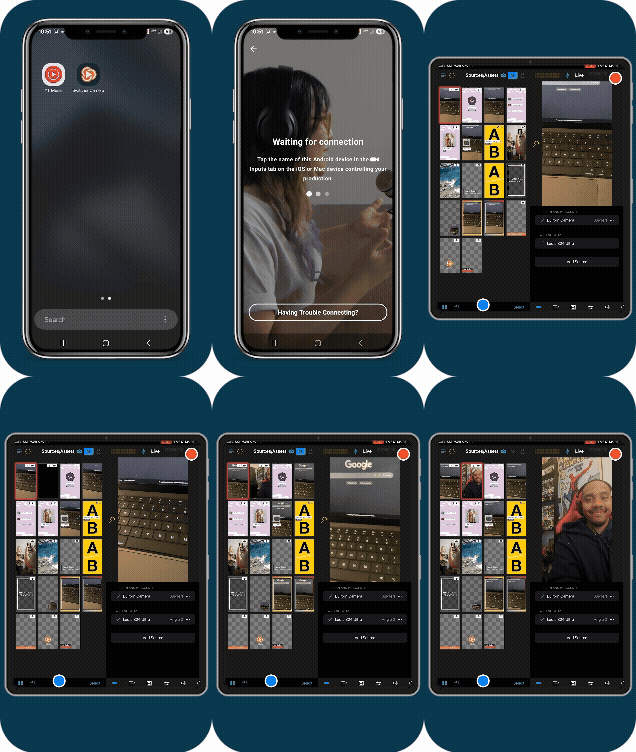 "Switcher Remote Camera" or go directly to the Play Store listing.
 - Make sure both devices are on the same Wi-Fi network. Your Android and your main Switcher device need to be on the same local network for this to work.
- Open the app on your Android and tap "Share Camera." This puts the device into camera-sharing mode and makes it visible to your production hub.
- On your iOS or Mac Switcher device, open the Inputs tab. Your Android will appear under "Wi-Fi Network" sources.
- Tap your Android device's name to initiate the connection.
- Give it a few seconds. Once connected, the camera feed will appear on the Android screen and in the Sources Panel on your main device.
- Tap the feed in the Sources Panel to go live.
To disconnect, tap the X on the camera view, then tap "Disconnect."
If your Android doesn't show up in the Inputs tab: tap "Add Source," then "Connect By URL," and enter the IP address shown on your Android screen. Find more info in our Help Center.
How does Switcher stack up to other Android Live Streaming Apps?
We might be a little biased… but here’s how we’re measuring ourselves against the other options that are out there.
When evaluating Android live streaming apps, it helps to understand what each tool is actually built to do. Here's how Switcher compares to the most common alternatives:
- Browser-based platforms: Designed primarily for remote guest interviews and multistreaming. They're not built for true multicamera production with physical mobile devices or prioritizing interesting camera angles mid-production. Getting multiple camera angles from actual phones requires workarounds, and the experience isn't designed for on-location productions.
- Single-platform desktop tools: Strong production tools but typically locked to one operating system and built around desktop workflows. Mobile camera integration is limited, and Android support is rarely part of the picture. Great if your whole setup lives on one computer; less useful if your cameras are in people's pockets.
- Professional broadcast software: Powerful, but complex and hardware-heavy. These tools are built for dedicated production crews with technical operators, not for teams or volunteers who just want to go live from the devices they already have. The learning curve and overhead setup can be tough when you just need to go live already.
- Distribution-focused platforms: Built for reliable delivery to your audience, not for flexible, mobile camera ecosystems. If you need a polished multicamera production to feed into a distribution platform, these tools don't solve the creation side of the problem.
With Switcher, you get a purpose-built solution for an affordable, flexible multicamera production. Android devices can now join iOS devices and Macs as live camera sources in a single production. Your entire production hub runs on a device most people already own, and setup takes minutes rather than hours.
Not just that, but now you can bring in any Android device that you have access to — including the ones in the bags of the parents at that little league game, or pockets of your Church volunteer — even that old hardware “junk drawer” at home.
Android or iPhone for Live Streaming - It Doesn’t Have to Be One or the Other
Android and iPhone cameras each have real strengths.
Many of the best smartphone cameras on the market right now are major Android phone brands — the Samsung Galaxy S24 Ultra, the Google Pixel 8 Pro, and Xiaomi's flagship Redmi devices all produce exceptional video quality.
At the same time, the iOS ecosystem has historically had stronger support from live streaming tools.
Switcher now bridges the gap for both. An iPhone runs the production and offers camera options. Android phones bring the camera angles. The result is a setup that makes use of whatever devices your team actually owns, rather than forcing everyone to buy a whole new equipment kit before you can even start streaming.
This also matters if you or your broadcasting group is based out of countries or regions where an Android is the mobile option. Switcher's Android support makes professional multicamera live streaming that much easier to start.
Here’s which Android Devices are most compatible with Switcher:
Samsung
- Galaxy A15
- Galaxy S24 Ultra
- Pixel 8 Pro
Motorola
- Moto G Power
- Moto G Stylus
- Moto G 5G
Xiaomi
- Redmi Note 13
- Redmi Note 13 Pro
Note: The app does require a modern Android — an Android 14 or later.
This isn't the full list and there are many more devices running Android 14 and above that are supported. Check Switcher's Help Center for the complete rundown of tested devices.
Lastly, do you need an iPhone or Mac to use Switcher with Android?
Yes, you'll need a single iOS device (iPhone or iPad) or Mac as the main production hub. But here's the thing: every other device in your setup can be an Android.
It means the barrier to building a professional multicamera rig just got a lot lower. Android devices, like mid-range models from Samsung, Motorola, and Xiaomi, are significantly more affordable than iPhones.
If you're adding two, three, or four camera angles to your production, being able to use Android devices for those angles changes the math on what a full setup actually costs.
For most users, the "one iOS device or Mac" requirement is less of a hurdle than it sounds:
- Teams and organizations typically already have at least one iOS device or Mac that can serve as the production hub, with Android devices joining as cameras.
- New users without iOS or Mac can collaborate with someone who has one, borrow a device to test Switcher's 14-day free trial, or pick up a base-model iPad which becomes a full multicamera production studio with Switcher.
- Looking to keep costs down? A refurbished iPhone or iPad from a trusted source is another solid option. We use sites like Back Market and Swappa that specialize in certified refurbished devices with buyer protections to find some of our equipment!
You don't need everyone on your team to have an iPhone. You just need one person running Switcher with an iOS or Mac device, and everyone else - Android users included - can contribute camera angles.
Start streaming with your Android today
The Switcher Android Remote Camera App is available now on the Google Play Store. If you're already a Switcher subscriber, download it and add your Android devices to your next production.
If you're new here, give Switcher a try free for 14 days. We think you'll like it.
Download the Switcher Remote Camera App →
Start Your Free Trial →
Subscribe to the blog
Sign up to receive notifications whenever a new blog post is published. You may unsubscribe at any time.
Share
About the Author
Clare is Switcher Studio’s brand manager. With 10+ years of experience in social media marketing and content creation, she has worked with brands in various industries to build loyal audiences online through strategic digital campaigns. Clare is excited to share her knowledge of analytics, algorithms, and more, so you can promote your live video productions and gain more viewers.
All posts by Clare White