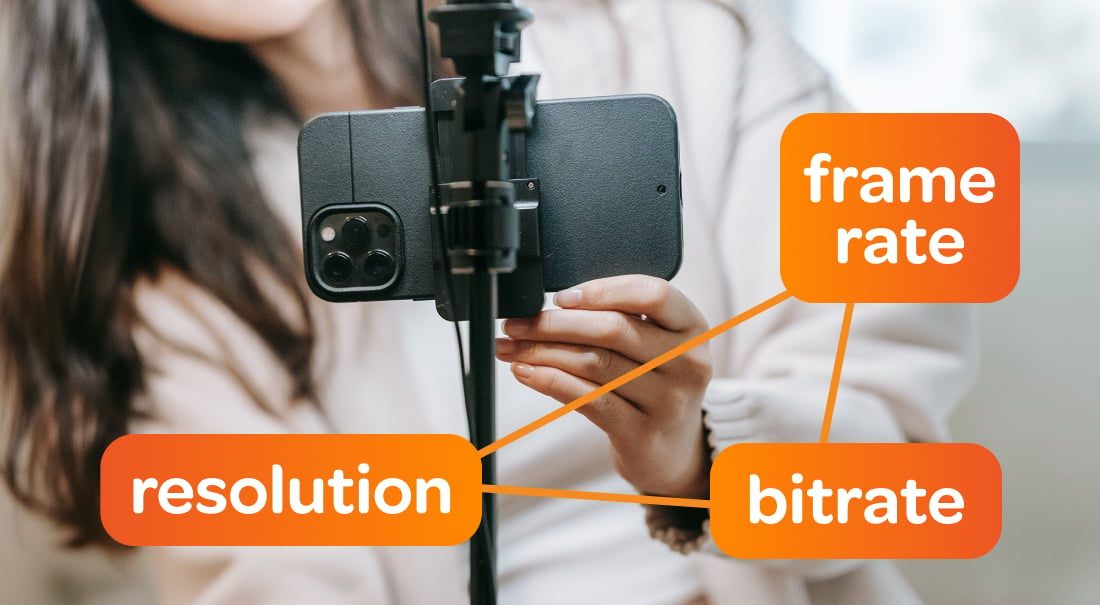
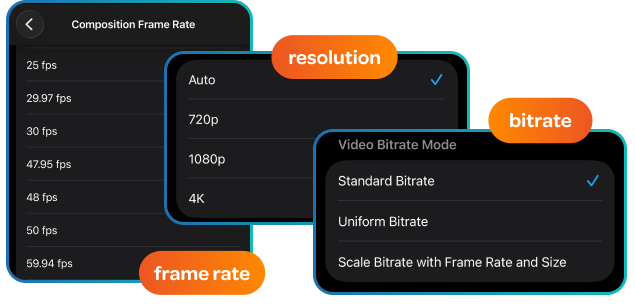
Resolution, bitrate, and frame rate work as a system, not three separate settings. Here's how the three fit together and which combinations create the highest-quality videos.
What's the difference between resolution, bitrate, and frame rate?
-
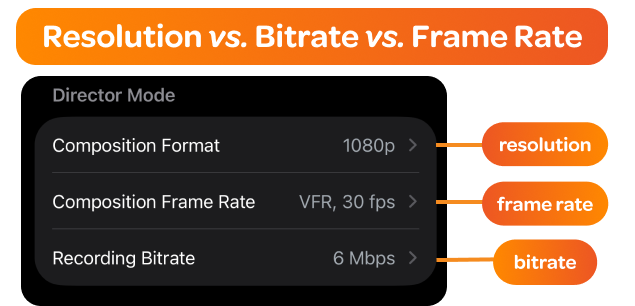
Resolution is how much detail your viewers can see in each frame, measured in pixels (1920x1080, for example). More pixels mean more detail.
-
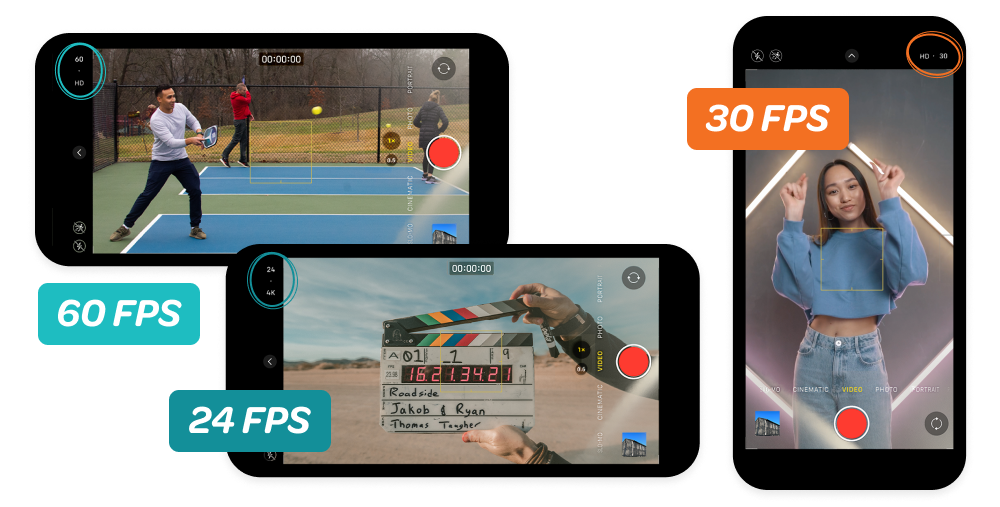
Frame rate is how many of those frames you see per second, measured in FPS. Higher frame rate means smoother motion. (Read the full breakdown of frame rate.)
-
Bitrate is the container that resolution and frame rate have to fit inside. It's set by your internet upload speed: the faster your connection, the more bitrate you have, and the more bitrate you have, the higher the resolution and frame rate you can stream at. (Read the full breakdown of bitrate.)
Bitrate vs. resolution: does higher resolution mean better quality?
No. A higher resolution doesn't automatically mean better video, because quality is 100% dependent on whether your bitrate can support it.
If you set your resolution to 4K without enough bitrate behind it, you don't get 4K video; you get a compressed, blocky version of it, because there isn't enough data to render the extra pixels.
Bitrate vs frame rate
Frame rate feeds off your bitrate. The more frames you send per second, the more bitrate it takes to send them.
If you run 60 FPS instead of 30, you need significantly more bitrate because you're sending twice the frames every second.
If your upload speed can't sustain 60 FPS, your video will stutter and drop frames, which looks worse than running a clean 30 FPS stream instead.
What bitrate should I use?
It depends on the resolution and frame rate you're running. A 1080p30 stream and a 1080p60 stream need different bitrates to look equally clean, even though the resolution is identical.
Switcher's full breakdown, including a resolution, frame rate, and bitrate reference table, covers exact numbers for common combinations and platform-by-platform recommendations.
FAQ
My stream looks low quality, which setting is the problem?
Match the symptom to the cause:
-
Video is blurry or blocky, but motion looks smooth: your bitrate is too low for your resolution.
-
Motion is choppy or stuttering, but the image itself looks sharp: your bitrate is too low for your frame rate, or your frame rate is set too low to begin with.
-
Stream keeps buffering or dropping entirely: your bitrate is set higher than your upload speed can sustain.
What resolution, frame rate, and bitrate are best for 4K?
For 2160p (4K) at 30 FPS, YouTube recommends a bitrate around 30 Mbps. Push to 4K at 60 FPS for fast motion, and the recommended bitrate jumps to around 35 Mbps.
What resolution, frame rate, and bitrate are best for sports?
Sports need a higher frame rate to keep up with motion, so aim for 1080p at 60 FPS, which YouTube recommends running at around 12 Mbps.
What resolution, frame rate, and bitrate are best for a worship service?
Worship services are mostly low motion, so 1080p at 30 FPS covers it well, at a recommended bitrate of around 10 Mbps. There's little benefit to pushing frame rate higher for a stationary speaker or a slow-moving choir.
What resolution, frame rate, and bitrate are best for talking heads (interviews, podcasts)?
Talking-head content has almost no fast motion, so 1080p at 30 FPS is enough, running at a recommended bitrate of around 10 Mbps. There's no visible benefit to a higher frame rate when the subject isn't moving quickly.
What resolution, frame rate, and bitrate are best for detail demonstrations (crafts, cooking, product demos)?
When close-up detail matters more than fast motion, resolution should take priority over frame rate. 1440p at 30 FPS shows more visible detail than 1080p, at a recommended bitrate around 15 Mbps.
What resolution, frame rate, and bitrate should I use on a slow connection?
If your upload speed can't reliably sustain 1080p, drop to 720p at 30 FPS, which YouTube recommends running at only around 4 Mbps. A stable 720p stream beats a 1080p stream that buffers or drops frames.
Switcher takes care of resolution, bitrate, and frame rate for you — automatically
Every time you go live, you're checking your platform's limits, your upload speed, and your content type just to balance resolution, bitrate, and frame rate.
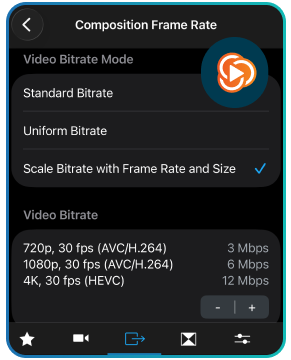
Switcher's cloud-managed encoder does that for you: pick your stream quality, and Switcher manages the bitrate behind it. Try Switcher for free today.
Subscribe to the blog
Sign up to receive notifications whenever a new blog post is published. You may unsubscribe at any time.

Share
About the Author