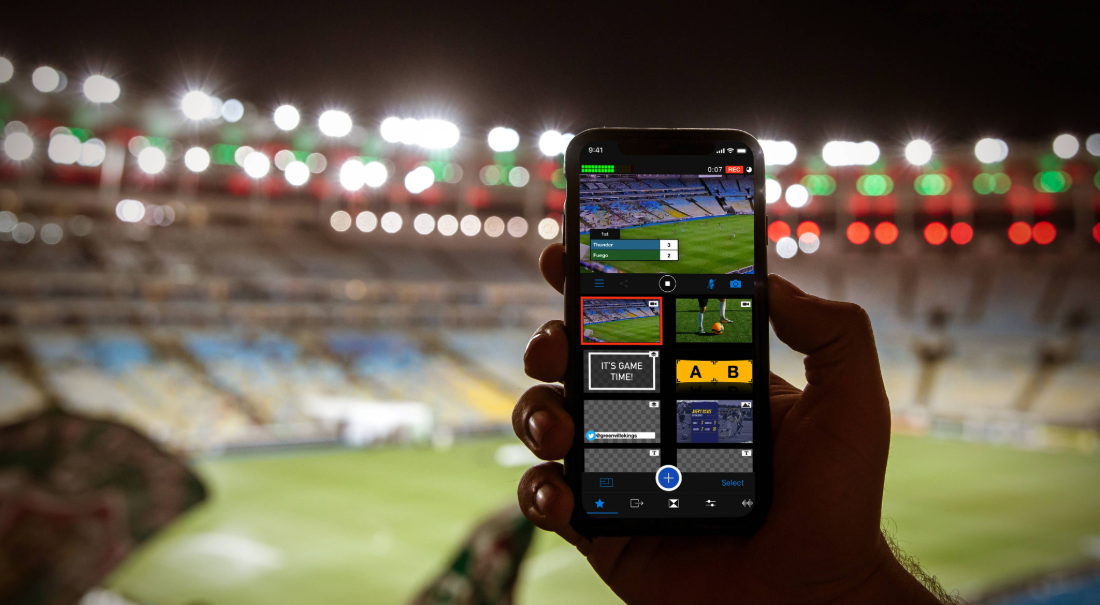
A scoreboard overlay displays the score, teams, and game information directly on your video while you live stream a game. It helps viewers understand what’s happening at a glance, even if they join late or are watching without sound.
In this guide, we’ll walk you through setting up a two-camera sports live stream with a custom scoreboard overlay using Switcher Studio.
Before you add a scoreboard overlay to your livestream
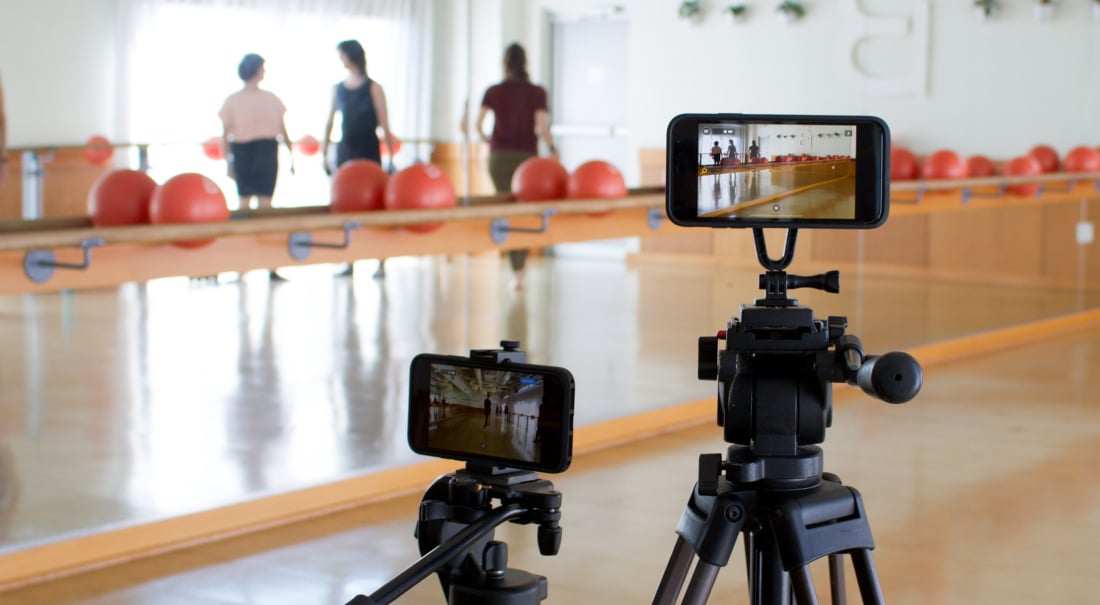
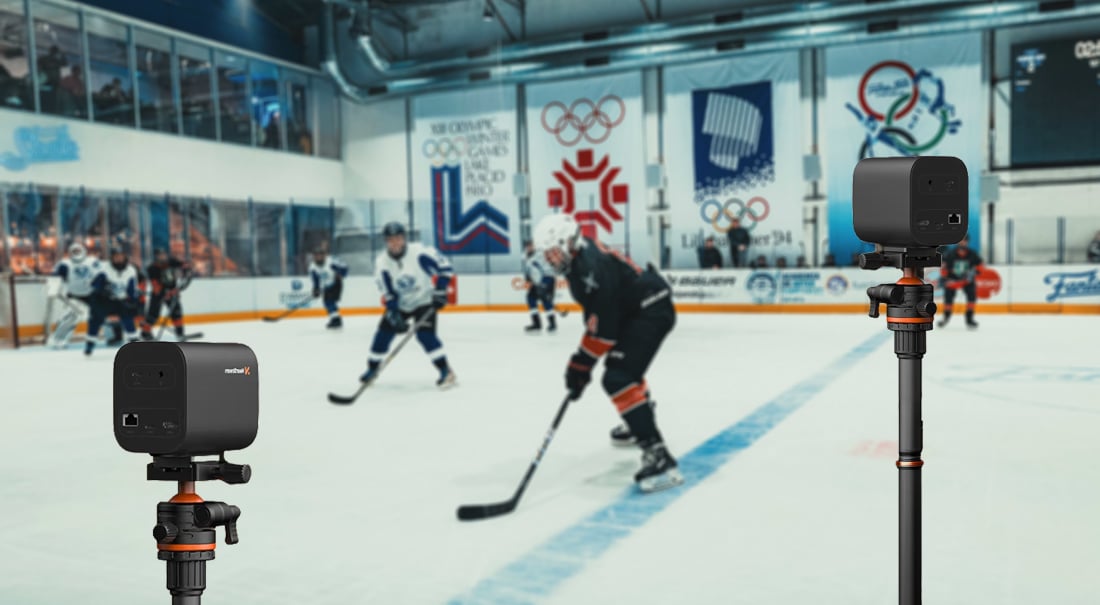
You need two devices to live stream with two camera angles:
Device 1: Your primary device (iPhone, iPad, or Mac):
-
Runs Switcher Studio and is your stream’s “mission control”
-
Uses its built-in camera as one angle (usually your wide shot of the game, or your “Game Cam”)
-
Switches between your different camera angles
-
Controls your scoreboard overlay
Tip: An iPad or Mac is a good choice here because the larger screen makes it easier to switch between your cameras and update your scoreboard.
Device 2: Your secondary device (another iPhone or iPad, or an Android phone or tablet):
-
Acts as an additional camera angle, usually a moving camera that follows the action up close or shares crowd reactions to the game.
When you have two devices ready, make sure you do the following:
-
Install Switcher Studio and sign in on both devices (if your secondary device is an Android, install the Switcher Remote Camera app on it instead)
-
Make sure both devices are connected to the internet using stable Wi-Fi, cellular data, or a combination of both
-
Mount both devices on tripods or stable surfaces
-
Label each device, so you know which one is primary and which one is secondary
-
Keep accessories such as chargers, power banks, and lens cleaners nearby
5 steps to add a scoreboard overlay to a two-camera sports live stream
Here is a detailed and simple walkthrough of how to add a scoreboard overlay to your game livestream, complete with visuals.
Step 1: Set up your primary device for sports live streaming
On your primary device:
-
Open Switcher Studio
-
Allow camera, microphone, and network permissions when prompted
-
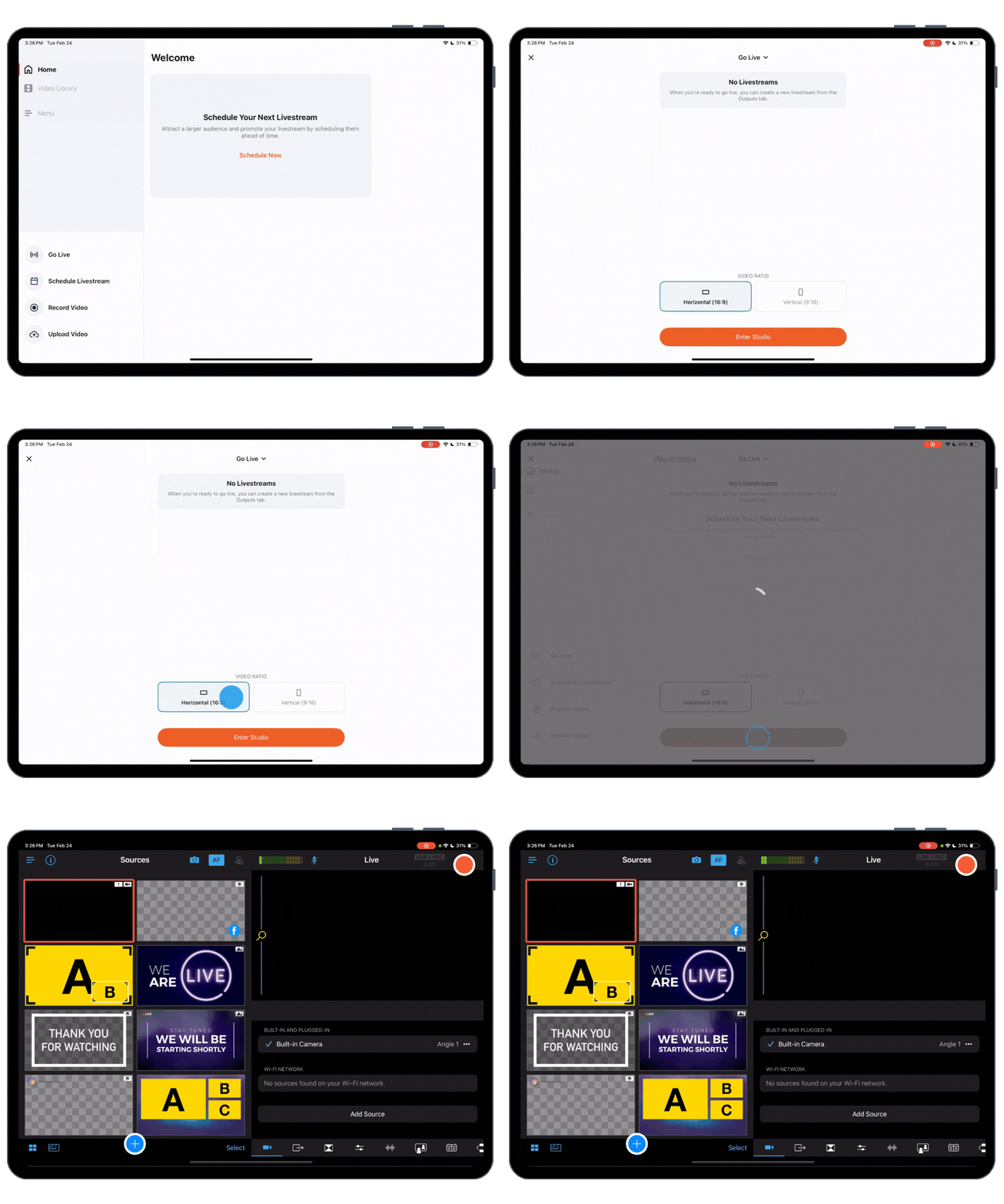
Tap to “New Livestream” to set up your live stream
-
Select either “Horizontal” or “Vertical,” depending on the primary platform you want to stream to. (E.g., If most of your viewers are on YouTube, choose “Horizontal,” but if most of your viewers are on Instagram, choose “Vertical.”)
-
Then tap, “Enter Studio.” The built-in camera on this device automatically becomes your first camera angle.
-
Position the device for your main shot, ideally a “Game Cam” — a wide, steady view of the action. Use the on-screen frame preview to confirm everything is framed correctly.
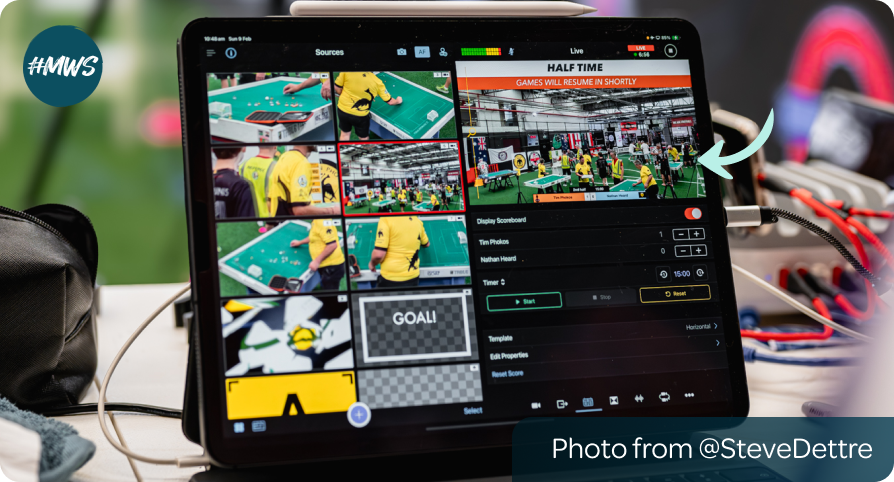
Step 2: Add and configure your scoreboard overlay
Next, you’ll add the scoreboard that will stay on screen while you switch between camera angles.
On your primary device:
-
Tap the scoreboard icon at the bottom of the screen
-
Toggle on “Display Scoreboard”
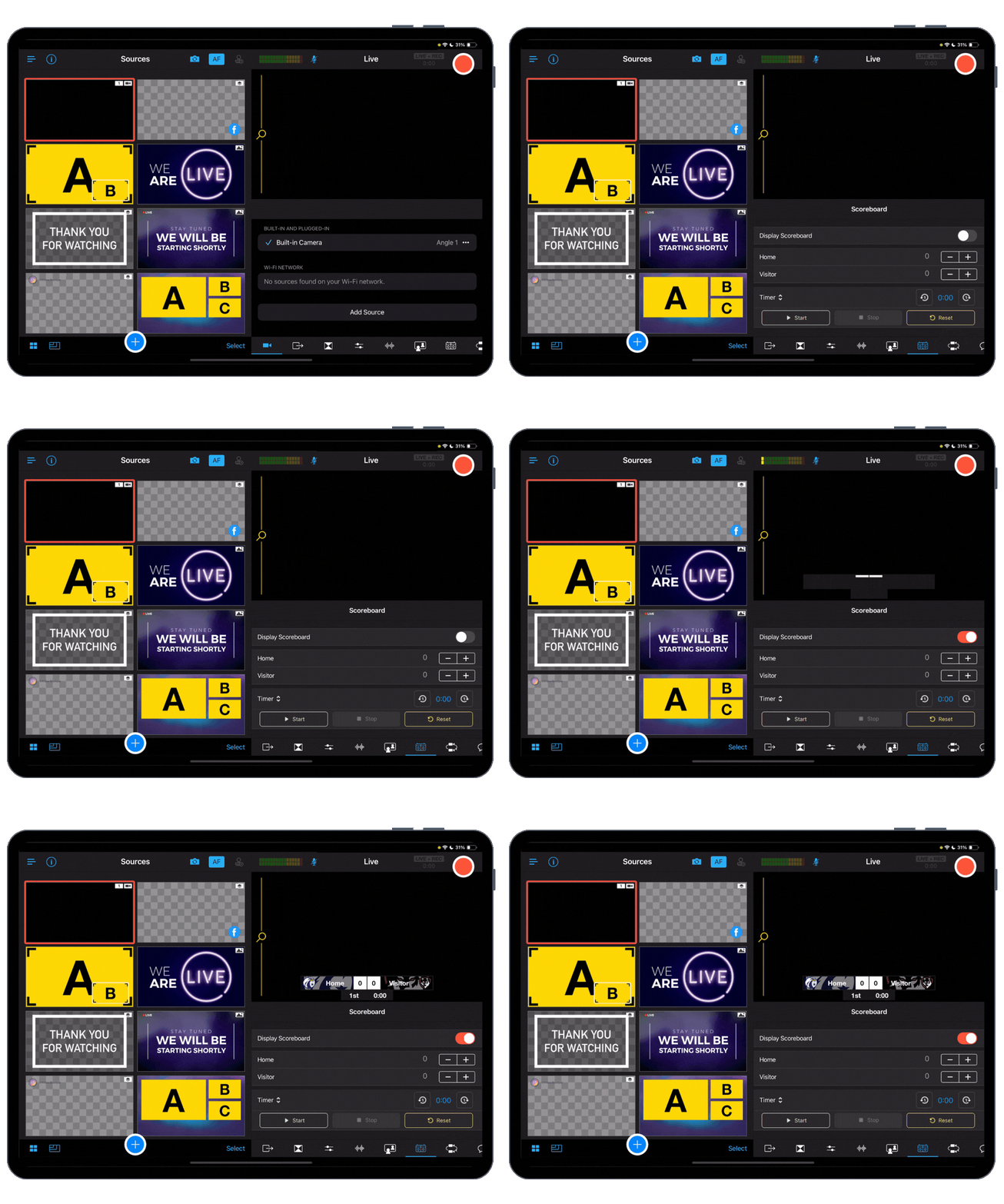
The scoreboard overlay applies to all camera views and remains visible when you switch cameras.
-
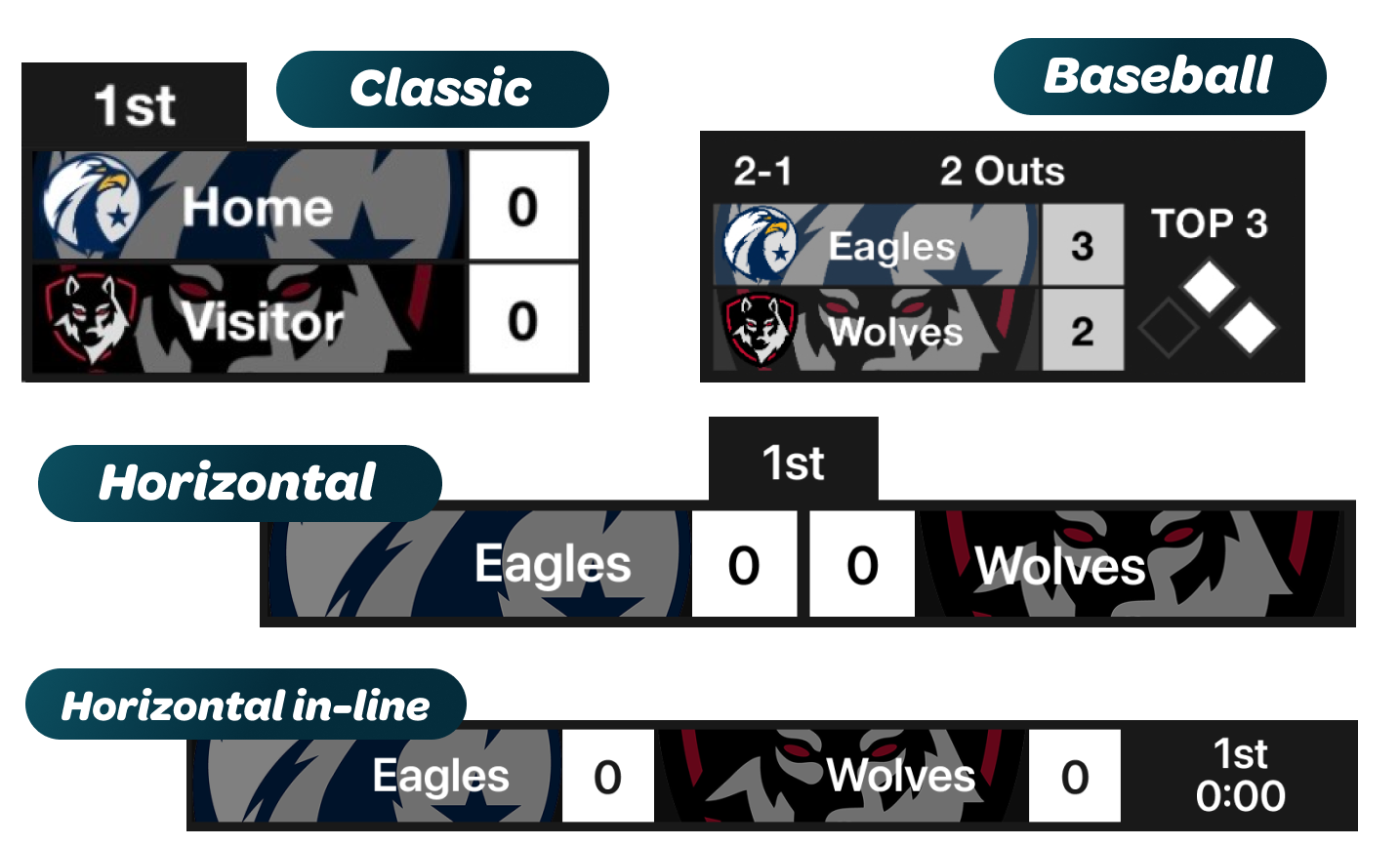
Choose your scoreboard template. There are four to choose from:
-
Classic
-
Baseball
-
Horizontal
-
Horizontal in-line
Step 3: Customize your scoreboard
Set up the scoreboard so it’s ready to update during the game. Any updates you make to the scoreboard appear instantly on the live stream.
-
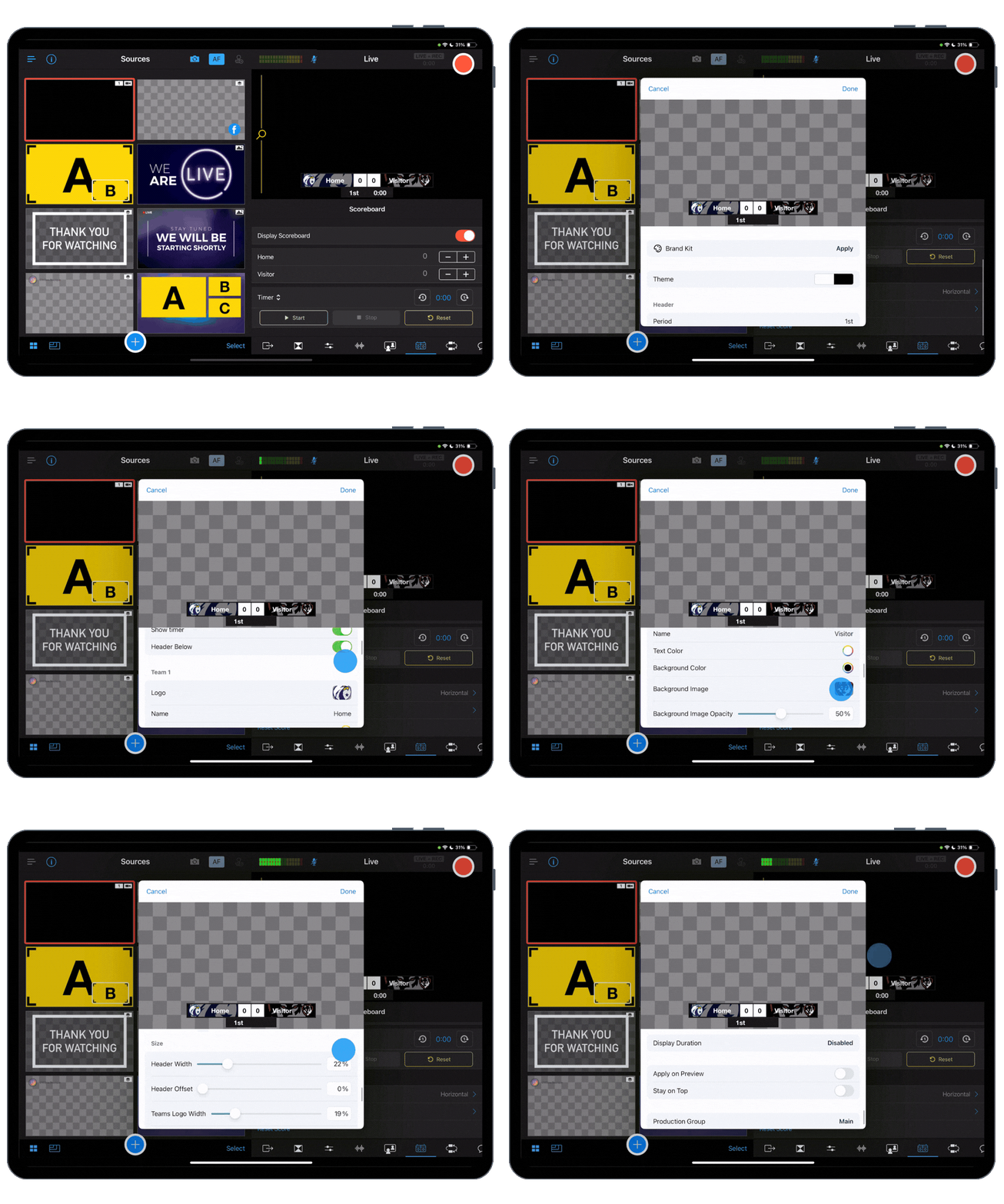
Scroll down and tap “Edit Properties” to configure your scoreboard.
-
Tap and drag the scoreboard to where you’d like it on the screen.
Then, scroll down to:
-
Add team names, logos, and colors (You can upload your teams’ logos to Switcher’s library)
-
Change the scoreboard’s color
-
Add an image from a sponsor
-
Change the font, text color, and style
-
Change the scoreboard’s size and dimensions
When you’re finished, tap “Done” to exit the menu.
Step 4: Connect your secondary device to use as a camera
Next, connect your secondary device/camera to your main device/camera. Your secondary device’s only job is to film and send video to your primary device.
To do this:
-
Open Switcher Studio on your secondary device.
-
Tap “Share Camera or Screen”
-
Tap “Share Camera”
-
Allow camera, microphone, and network permissions if prompted
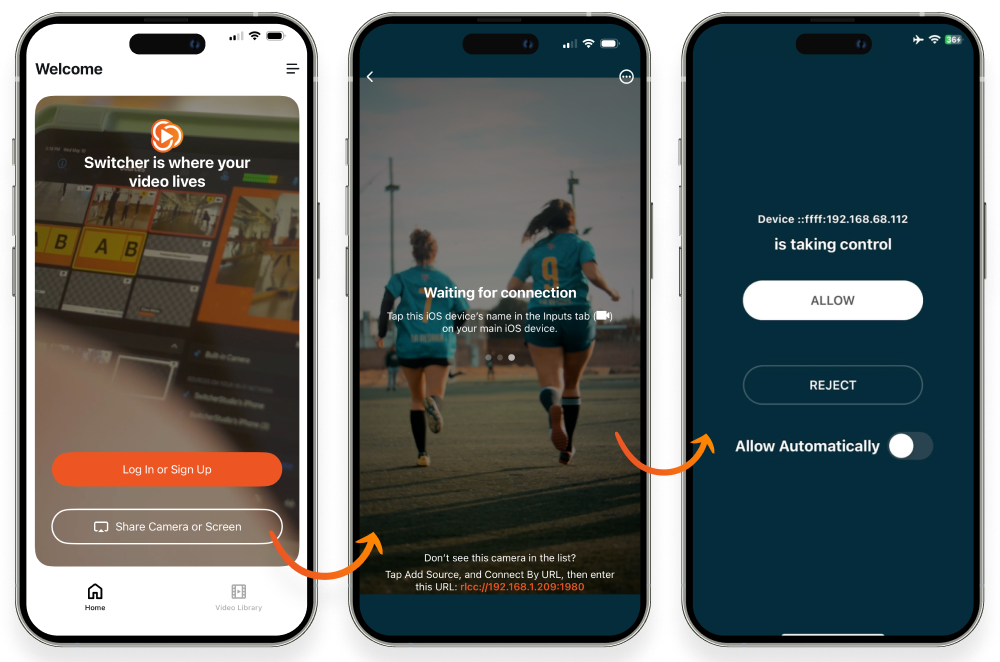
Then, go back to your main Switcher device to add your new camera source.
-
Tap the camera icon at the bottom of the screen to add your secondary camera.
-
Then tap your iOS device’s name, under “Sources on your wifi network.”
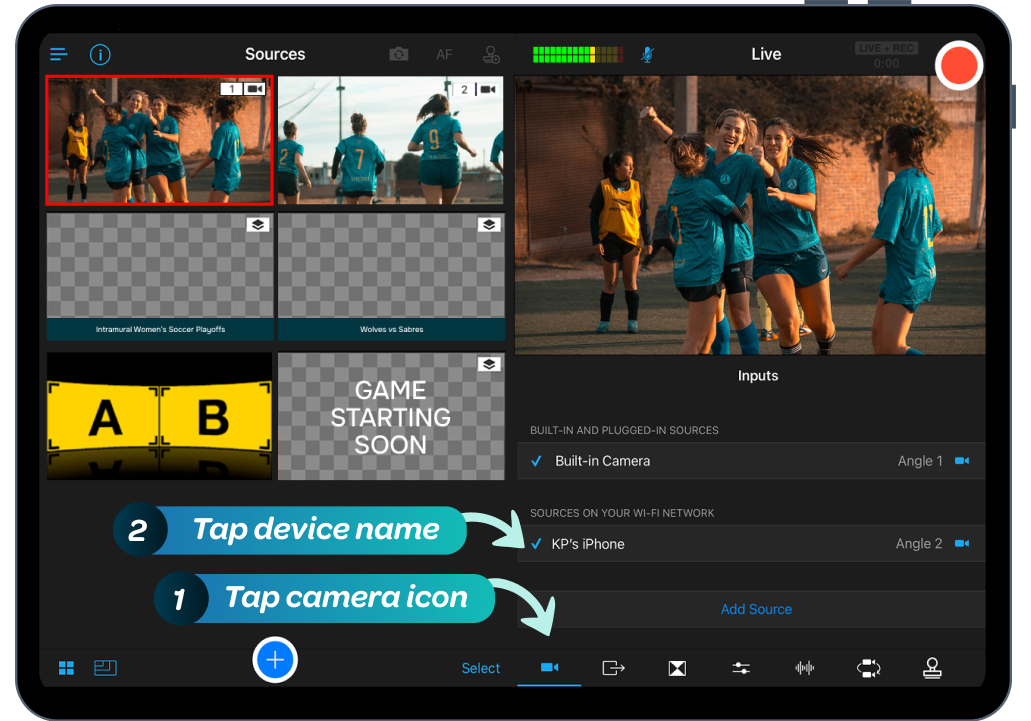
On your secondary device:
-
Tap “Allow” on your secondary device to link them together.
-
Position your secondary device to frame your camera shot, perhaps for a crowd cam for reactions, bench shots, or close-ups. Once the shot looks good, leave this device in place so it stays steady during the game.
Once connected, you should see two camera previews on your primary device:
-
The built-in camera from the primary device
-
The camera feed from the secondary device
At this point, you have a two-camera sports live streaming setup.
Tip: Using an Android phone or tablet as your secondary camera?
Open the Switcher Remote Camera app, make sure it's on the same Wi-Fi network as your primary device, and tap "Share Camera." Then tap the camera icon on your primary device and pick your Android from the sources on your Wi-Fi network. Here's the full Android setup.
Tip: Have an NDI camera, like a PTZ camera mounted in the press box?
It can be your secondary camera, too. On your primary device, turn on "Enable NDI Cameras" in your inputs and tap the camera to connect. You can adjust its zoom and focus right from Switcher, so nobody has to stand behind it. Our NDI livestreaming guide covers the setup.
Step 5: Go live!
Once everything is set, you’re ready to start streaming. On the primary device:
-
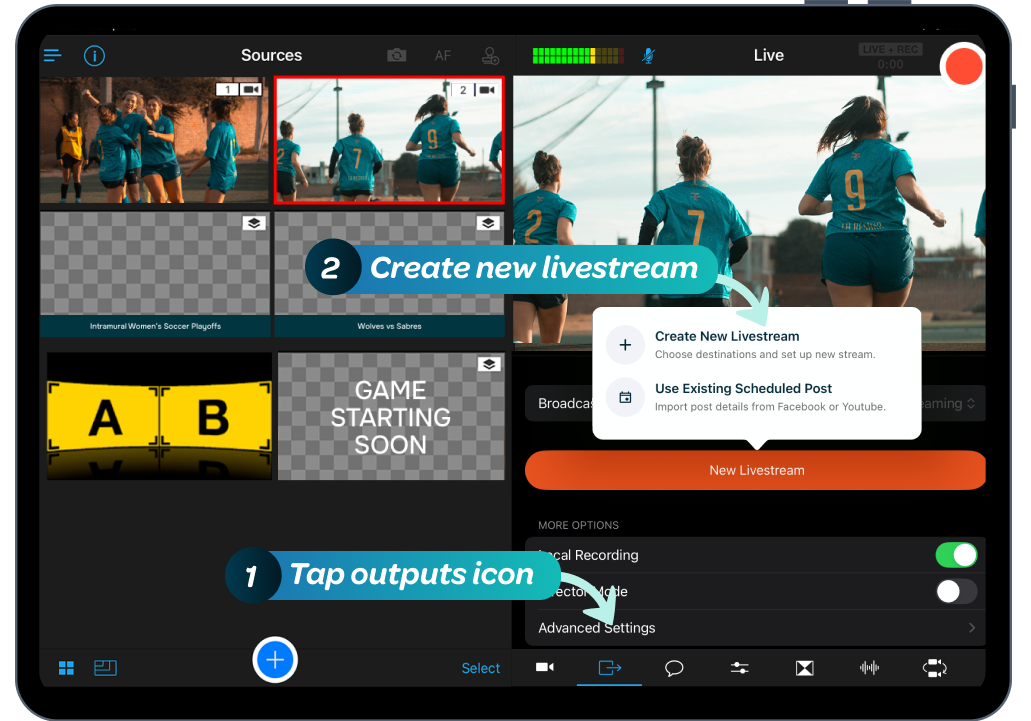
Tap the outputs icon (which looks like a square with an arrow pointing to the right)
-
Tap “New Event”
-
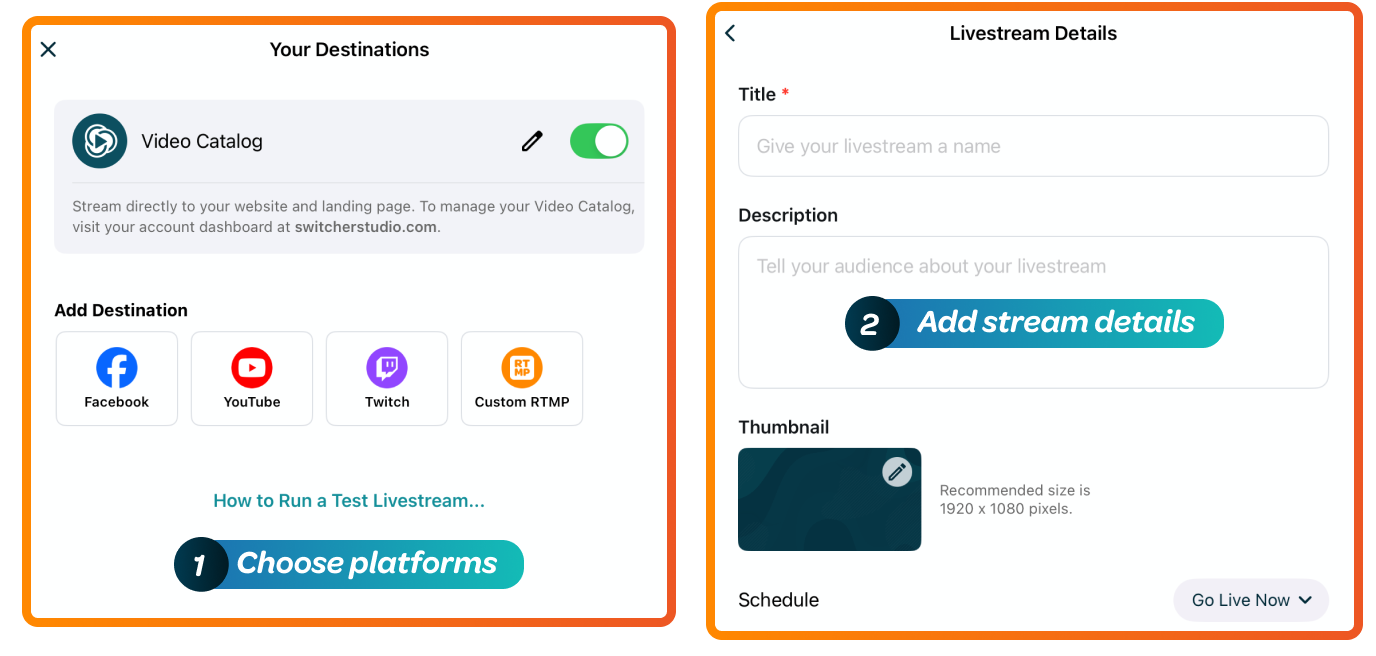
Connect your streaming destinations to Switcher
-
Edit your event details — these will also display on each platform you stream to
During the game:
-
Switch between your cameras by tapping the camera previews
-
Update the scoreboard overlay as the game progresses
- Tap Instant Replay after a big play to show the last 10, 20, or 30 seconds again, then tap a camera preview to go back to the live game
-
When the game ends, tap “End Stream” to finish the broadcast
Live stream your sports games with Switcher
If you run into questions while setting this up, you don’t have to figure it out on your own. The Switcher team is here to help you get your cameras connected, your scoreboard overlay dialed in, your graphics added, and your stream ready to go. Whether it’s your first game or you’re refining your workflow, reaching out can save time and remove guesswork.
You can email Switcher’s help team at support@switcherstudio.com or contact us here.
If you’re not using Switcher Studio yet, the easiest way to see how this works is to try it yourself. Sign up for a free trial and test a sports scoreboard overlay with the devices you already have. A few taps are often all it takes to turn a simple live stream into something that looks and feels like a real game broadcast.
Subscribe to the blog
Sign up to receive notifications whenever a new blog post is published. You may unsubscribe at any time.
Share
About the Author