

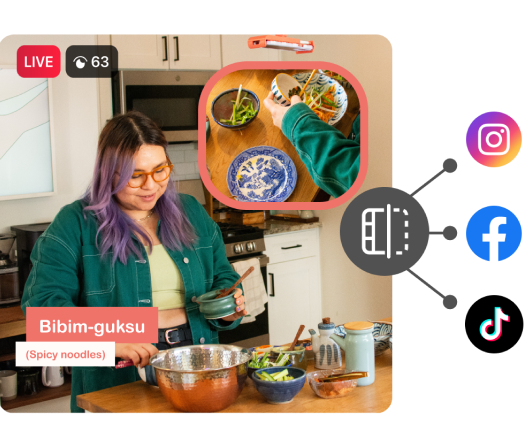
Instagram Live is now built into Switcher, right alongside Facebook and YouTube. Connect your account once, then choose Instagram whenever you go live or schedule a stream.
Already streaming to Instagram through RTMP? You can now connect your account directly instead of entering a new stream key for each broadcast — that's one less thing on your pre-stream checklist.
Whether you’re demonstrating a product, teaching a class, or hosting a conversation, Switcher helps you create a show around what you want to share with your Instagram followers.
Bring your whole show to Instagram
Run Switcher on your iPhone, iPad, or Mac to manage your stream. From there, you can:
-
Give viewers a closer look: Add a compatible iPhone, iPad, or Android device as another camera and tap to switch angles. Try an overhead shot for a cooking demo or a product close-up during a makeup tutorial.
-
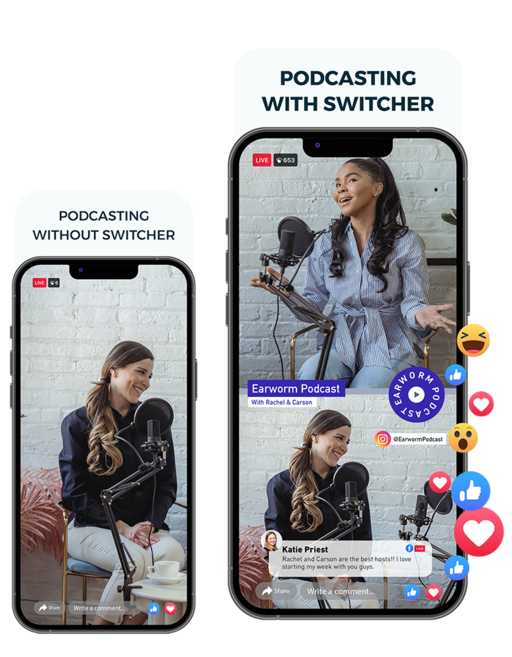
Make your Live feel like your brand: Your grid has a look. Your Live can match it. Add your logo and colors, along with helpful details like product names, guest introductions, and key points.
-
Bring guests into the show: Invite up to five remote guests for interviews, Q&As, or conversations with fellow creators. Switch between guests and camera angles, and keep names and titles on screen.
Your show doesn’t have to stay on Instagram, either. Viewers can watch on Instagram, Facebook, YouTube, or your other destinations while you manage one production. Learn more about streaming to multiple channels.
How to connect Instagram to Switcher
The Instagram destination is included in every Switcher plan.
Before you connect, make sure your Instagram account meets these requirements:
-
Account type: Professional, either Business or Creator, connected to Facebook
-
Visibility: Public
-
Followers: At least 1,000
Account ready? Here’s how to get connected:
-
Update Switcher: Make sure you’re using the latest version.
-
Choose your video format: Open Switcher and select Horizontal or Vertical. For an Instagram-only stream, choose Vertical.
-
Connect Instagram: In the Outputs tab, tap New Event and select Instagram. Sign in to connect your account the first time, then select any other destinations you want to include.
-
Go live now or schedule for later: When it’s time to start, tap the red button to go live.
Streaming horizontally? Instagram center-crops your video to fit a vertical frame, cutting off the sides. Frame your shots and place your graphics so important content stays visible within that crop.
You can also connect your account ahead of time in your Switcher dashboard under Platforms. For the full walkthrough, see streaming to Instagram Live with Switcher in our Help Center.
Coming next: Instagram live comments
We’re also working on bringing Instagram live comments into Switcher.
Once available, you’ll be able to read Instagram comments alongside your Facebook and YouTube comments while you multistream. You’ll also be able to tap a question or reaction to display it on screen and bring your viewers into the conversation.
.png?width=800&height=600&name=On-Screen-Comments%20(1).png)
Try it for your next Instagram Live
Already using Switcher? Update the app and connect your Instagram account before your next stream.
New here? Start your free trial and give Switcher a try for your next Instagram Live.