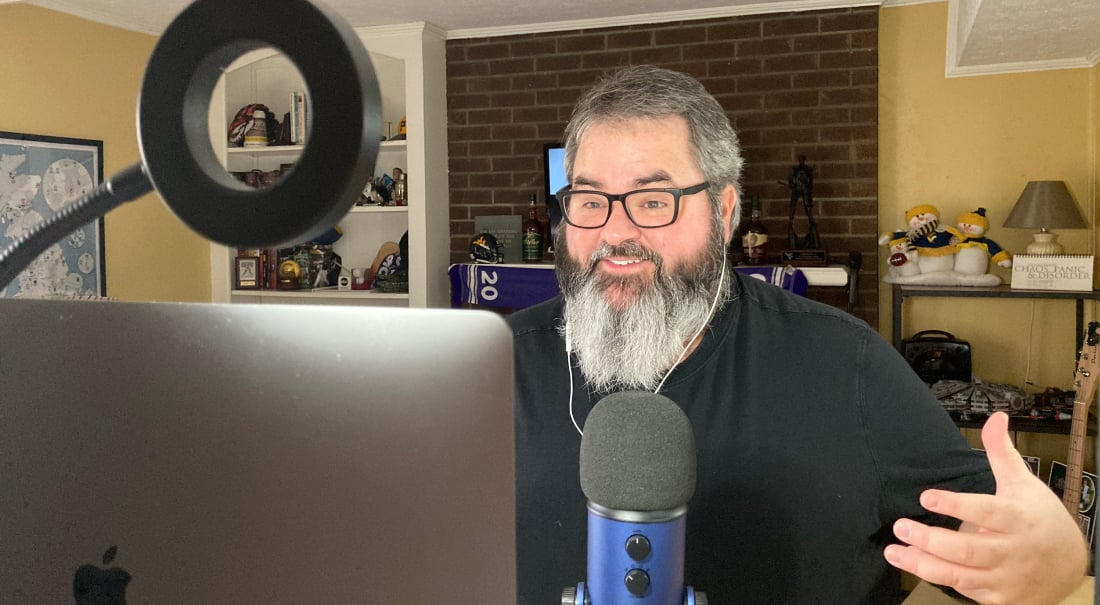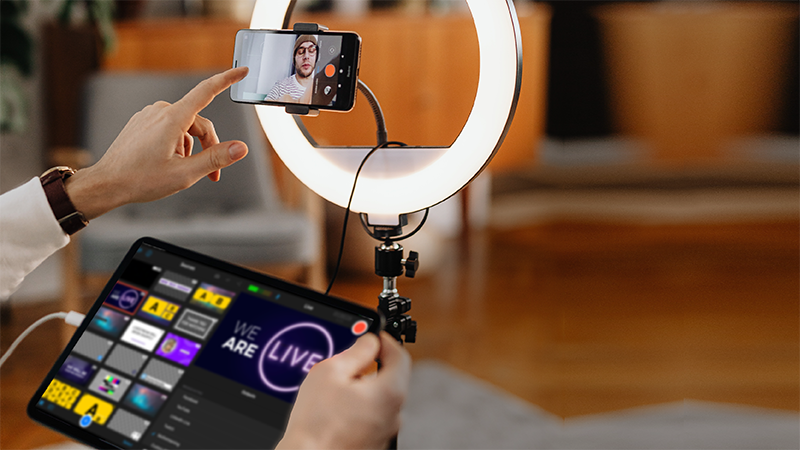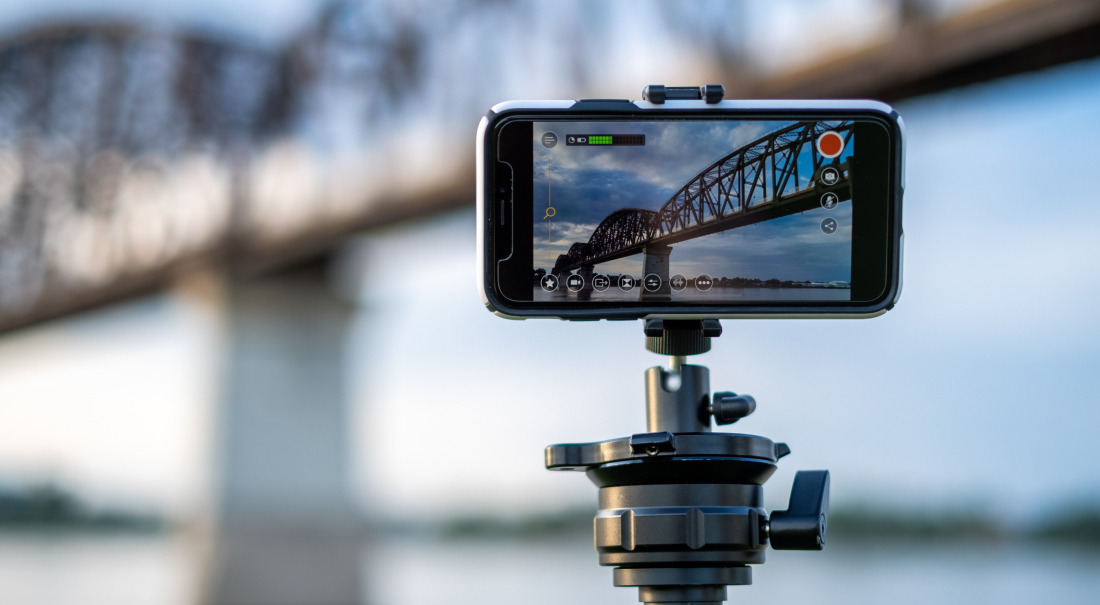
The best live streaming camera is probably already in your pocket.
Modern phones shoot sharp video and handle ordinary indoor light well, which means you can produce a clean live stream without investing heavily in gear.
This guide shows you two things:
-
How to use a single phone as a remote camera
-
How to combine several phones into a multi-camera setup.
You need a phone, a good Wi-Fi connection, and a few minutes.
Let's go through it.
What does a remote camera for live streaming really mean?
A remote camera can mean many things, for example:
-
Using your phone as a wireless webcam for a computer: Your phone captures the video, and software on your laptop treats it as a camera input, so you can use it as a webcam on platforms like Zoom, Meet, or Twitch.
-
Going live directly from your phone to a platform like YouTube or Facebook, with no other device or software involved. You broadcast straight from your phone to the platform.
-
Using phones as camera angles in a multi-camera production, where you choose which angle viewers see and cut between them in real time, the way a director does in a control room.
Each one suits a different situation.
The right choice depends on what you want to show and how much control you need over the final stream. We’ll cover all three uses of phones as remote cameras later on.
Why is your phone a great remote camera for live streaming?
Let’s compare your phone against the two things you'd otherwise use: an external digital camera and a webcam.
Phone vs. a dedicated camera
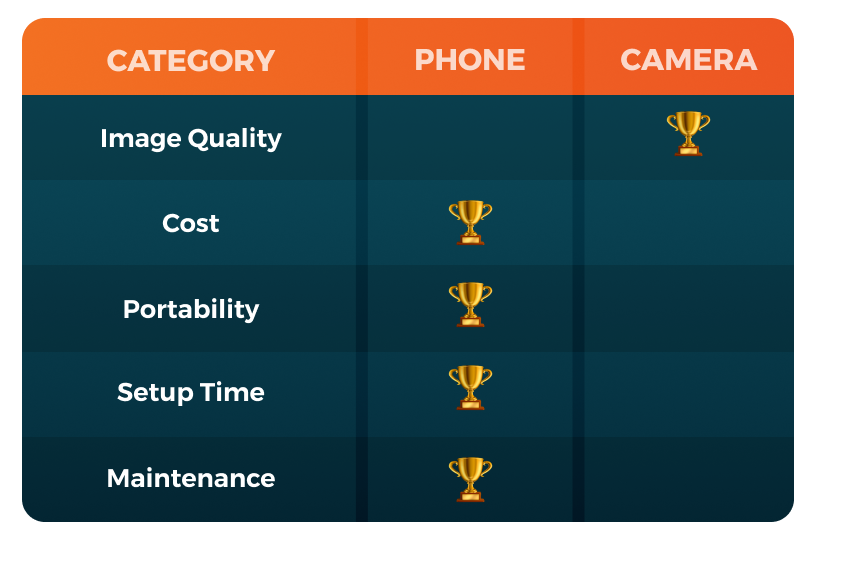
Let's be clear up front: a phone is not as good as a high-end camera.
A great pan, tilt, and zoom (PTZ) camera, a mirrorless body with a good lens, or a professional broadcast camera will produce a better image in almost every way.
Those cameras offer true optical zoom, so you can fill the frame with a distant subject without losing detail. Their larger sensor gathers more light, so they perform better in dim rooms and give you that soft, separated background. They take interchangeable lenses and offer deep manual control.
On pure quality, professional-grade cameras win. But a better image is only one part of the story. And that quality costs a lot:
-
A good camera setup is expensive, often running into the thousands once you add a lens.
-
It's fragile and precious, so you handle it carefully, transport it in padded cases, and likely insure it.
-
It usually requires a capture card and a computer to get its picture into a live stream, which adds to the gear and setup.
-
It needs ongoing upkeep, from cleaning the sensor and lenses to keeping the firmware up to date.
A phone asks for almost none of that. How?
-
You already own it
-
It fits in your pocket and needs no cases
-
It's sturdy enough to hand to a volunteer without worrying you'll lose a thousand-dollar investment if it's bumped
-
There are no lenses to swap and nothing to maintain
And you can be filming within minutes.
So the trade is plain: a dedicated camera gives you a better picture but demands money, care, and setup time, while a phone gives you a very good picture with none of that overhead.
For the great majority of live streams, the trade favors the phone.
Want to learn more? Dig into the details by reading: iPhone vs DSLR for Live Streaming: Which is Better?
Phone vs. a webcam
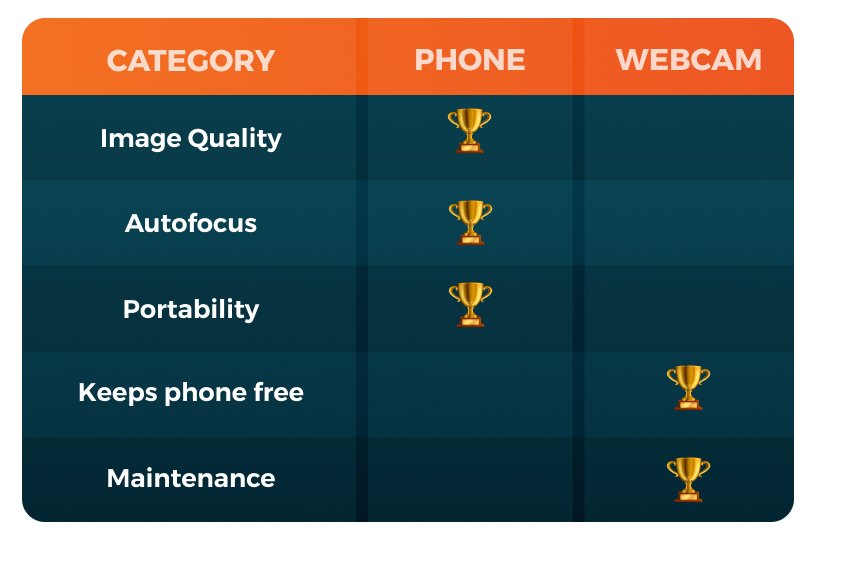
A phone wins in terms of image and flexibility:
-
It has a better sensor and image processing than a typical webcam, so your picture looks cleaner in normal room light instead of grainy or washed out.
-
Its autofocus is faster and more accurate, so you stay sharp when you lean in or move around.
-
It goes on a tripod or in someone's hand; you can place it across the room rather than being clipped to your monitor, so you put the camera where the shot is good rather than where the cable reaches.
A webcam wins on simplicity:
-
It plugs into a USB port with nothing to install
-
It stays dedicated to the job, so your phone stays free for calls and messages
-
It won't drain your battery or get hot during a long livestream
If you only ever need one fixed shot at your desk, a webcam is the lower-effort choice.
4 Ways to use your phone as a camera for live streaming
If you need one camera and want to keep things simple, start with one of these four methods. (The last one is to set up a full multi-camera production.)
1. Stream from your phone through your browser
This method turns your phone into a wireless camera using nothing but a web link. To do it, you need three things:
-
A computer
-
Your phone
-
Two pieces of software working together:
-
The first is streaming software: The program on your computer that pulls in your cameras, lets you arrange them, and pushes the finished broadcast out to YouTube, Facebook, or wherever you're going live. Free, popular options include OBS Studio, Streamlabs, and vMix. Read our guide to streaming software here.
-
The second is a WebRTC tool: WebRTC (Web Real-Time Communication) lets a phone send live video to your computer through a browser. A WebRTC tool is what carries your phone's picture across your Wi-Fi and hands it to your streaming software. The best-known free one is VDO. Ninja. Others in the same family include tools like DroidCam and IP Webcam. Any of them does the same core job.
-
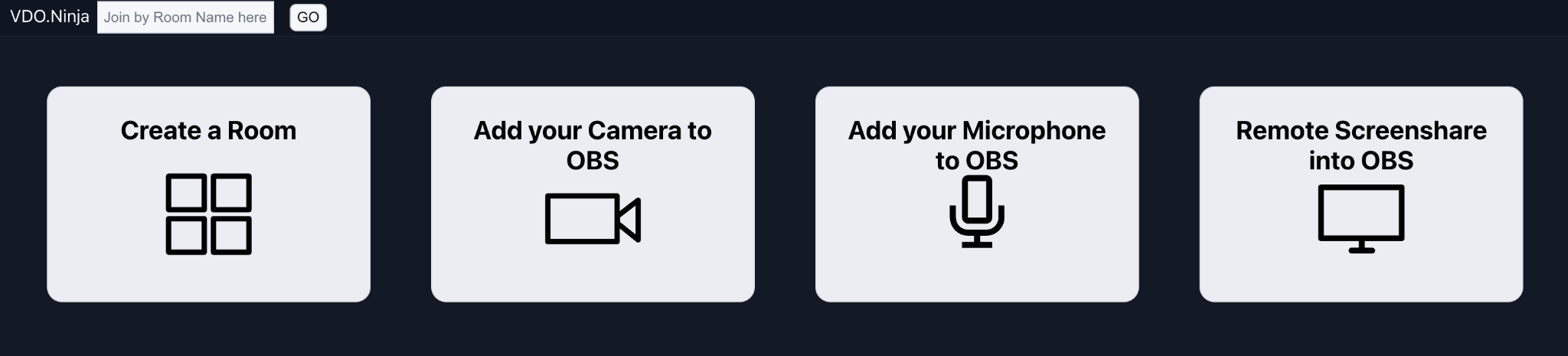
Here's how it goes together, in order.
-
Start on your computer: Open the WebRTC tool in your browser and choose the option to add a camera. It generates two links: one for your phone and one for your streaming software.
-
Move to your phone: Send yourself the first link — text it, email it, or scan the QR code the tool shows — and open it in your phone's browser. The phone asks permission to use its camera; allow it. Your phone is now sending its video out.
-
Back to your computer: In your streaming software, add a new video source and paste in that second link. Your phone's camera appears inside the software as a video layer. From here, you stream exactly as you normally would.
That's it.
Two things to expect:
-
There's a small delay, usually about a second, between what the phone sees and what lands on your computer; that's normal and stays in sync with your voice, but a weak Wi-Fi signal will stretch it.
-
It won't look quite as crisp as a camera wired straight into the computer, because the video is squeezed down to travel across Wi-Fi.
2. Turn your phone into a webcam for your computer
This method makes your phone act like an ordinary webcam, so you can use it for any video app on your computer. To do it, you need a:
-
Computer
-
Phone
-
Webcam app: These apps come in two halves that work as a pair: one half on your phone, one half on your computer.
The phone captures the video. The computer half creates what's called a virtual webcam — a stand-in camera that your other programs see and treat exactly like a plug-in USB webcam.
Several do this job well, most with a free version: Camo, DroidCam, Iriun, and iVCam are common picks.
Here's how it goes together.
-
Start on your phone: Install the webcam app of your choice.
-
Move to your computer: Install that same app's companion program.
-
Connect the two: The steadiest way is to plug your phone into the computer. You can also go wireless if both devices are on the same Wi-Fi network, but expect a little more lag.
-
Open both halves, and they'll find each other on their own.
-
Select the app's name from the camera list in your streaming software
That's it. Your phone is now the camera.
Hot tips:
-
If you're on a Mac and want to stream from an iPhone, you've already got the best version of this. As long as both are signed into your Apple account, your Mac will spot the iPhone the moment it's nearby and offer it in the camera menu. Pick it, and you're rolling, completely wireless.
-
On Android, you get the same kind of built-in shortcut, with one difference: you'll connect with a cable. Plug your phone into the computer, swipe down to the USB notification, and tap it over to "Webcam." Your phone shows up as a camera, ready to use.
-
The trade-off: your phone is tied up for the whole session, and a long stream will drain the battery.
3. Go live straight from your phone
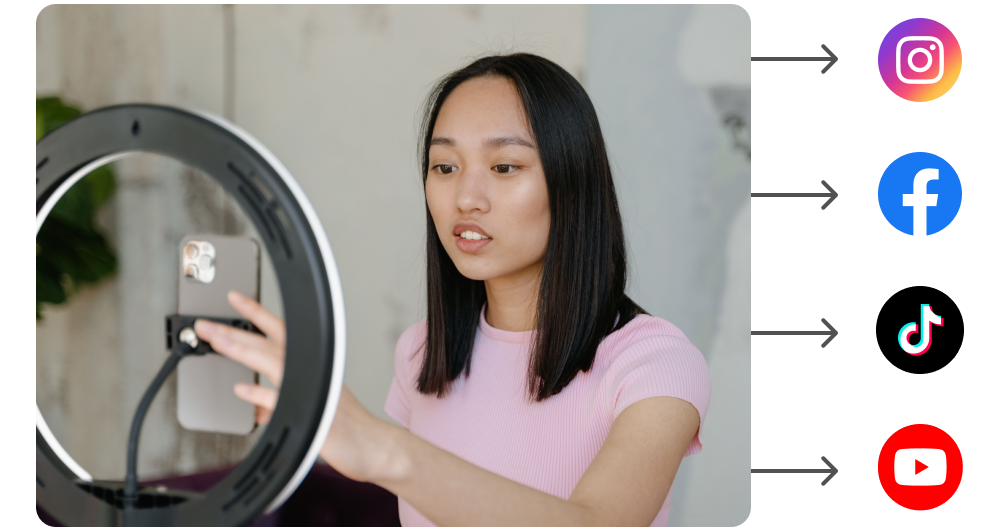
This is the quickest way to go live. All you need is your streaming platform app, such as YouTube or Instagram, and an active account.
-
Open your streaming platform app, tap the Create or "+" button, and choose “Go Live.”
-
When the app asks to use your camera and microphone, allow it.
-
From there, you'll give your stream a title, set it to public or private, and hit start.
That's you, live.
There's one thing worth sorting out ahead of time: each platform has rules on who can go live from a phone.
For example, YouTube requires 50 subscribers and a verified channel before it lets you stream, and the first time you switch the feature on, it takes 24 hours to activate.
Check our detailed guide on all the streaming platforms here.
4. Connect several devices with a multi-camera app like Switcher
This method lets you connect several devices to one app and cut between them while you're live. To do it, you’ll need:
-
Phones or tablets on the same Wi-Fi network
-
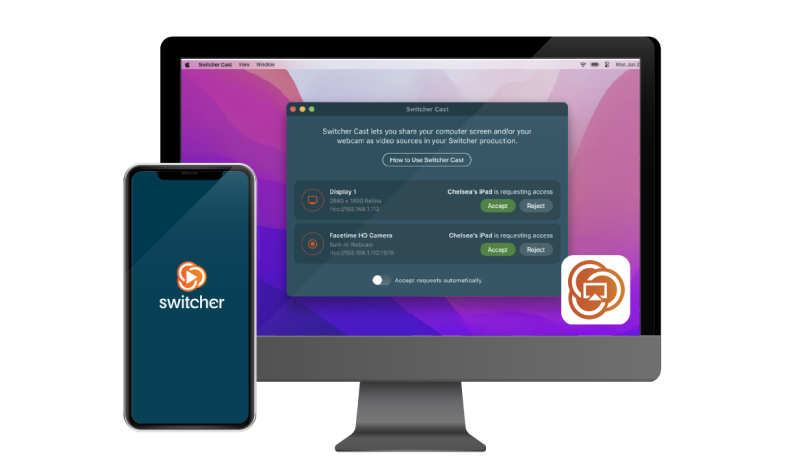
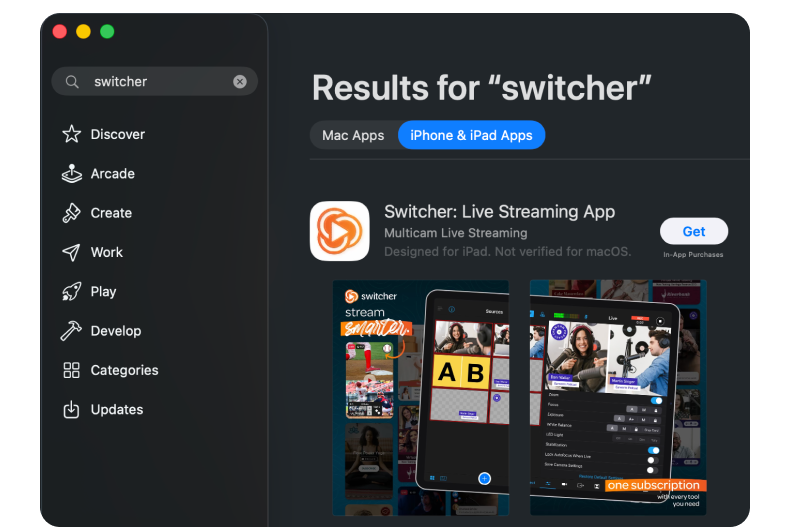
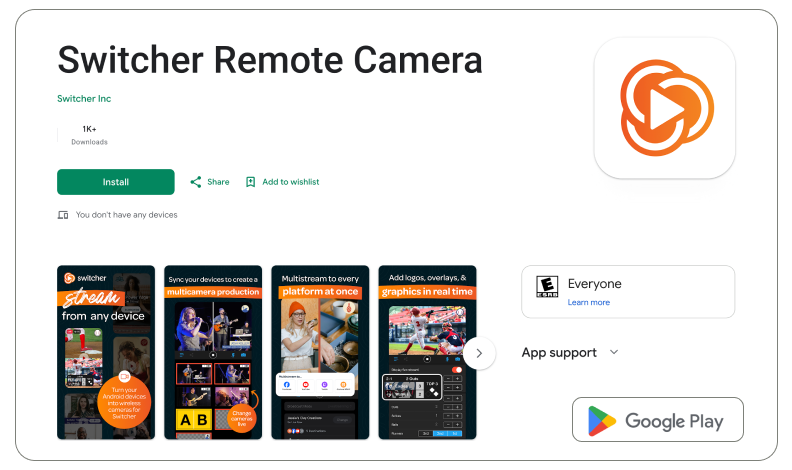
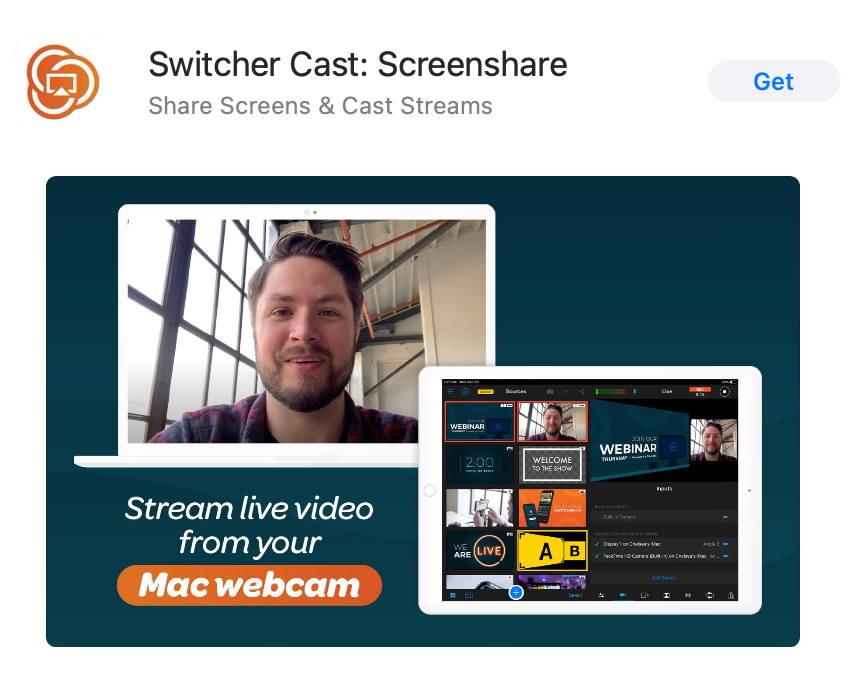
One of Switcher’s 3 apps on each device:
-
“Switcher Studio” in iOS or MacOS
-
“Switcher Remote Camera” for Android devices
-
“Switcher Cast” to use computer webcams
Here's how it goes.
-
Pick the device that runs the show: This is your control panel. Switcher calls it the main switcher, and it can be any iPhone, iPad, or Mac). Open the Switcher Studio app on it and start a new livestream.
-
Set up each phone camera: Open the Switcher app on each device and tap “Share Camera.”
-
Add each phone to the show: Go back to your main switcher; open the camera tab; you’ll see a list of your phones on the camera list. Tap it to add it. Repeat for every phone.
-
Place your cameras: Set the phones on tripods and aim them where you want your shots.
-
Run it: You see all the angles at once on your main device. Tap an angle, and that's what viewers see. Add a logo, put up titles, and send the stream to YouTube, Facebook, or wherever you're livestreaming.
That's it.
You can connect up to nine cameras (phones, tablets, and even NDI cameras on the same network), but most people use two or three: a wide shot and a close-up or two.
No capture card, nothing to build on a computer, so setup takes minutes.
Turn your phone into a remote camera for live streaming today
Your phone is a great camera, so use it to turn your content into a production people want to tune into. The quickest, least technical way to do that is Switcher.
Here's what that gets you:
-
Multicamera productions: Connect phones — yours, volunteers’, friends’ — and run them all as camera angles in one production.
-
Pro production quality: Cut between a wide shot and a close-up live, with a tap, so your stream stops looking static and starts hooking people in.
-
Instant replays: Missed the moment? Instant Replay plays back the last 10, 20, or 30 seconds with one tap and saves each clip for recaps and social posts.
-
Your brand front-and-center: Add your logo, titles, and graphics, so it looks like you, not like a default stream.
-
A way to make money: Sell tickets, charge for access, take donations, or promote a membership subscription straight from the stream.
-
Go live everywhere at once: Send the broadcast to YouTube, Facebook, your own site, and more at the same time.
Try Switcher for free and make your first multi-camera stream today.
Subscribe to the blog
Sign up to receive notifications whenever a new blog post is published. You may unsubscribe at any time.
Share
About the Author