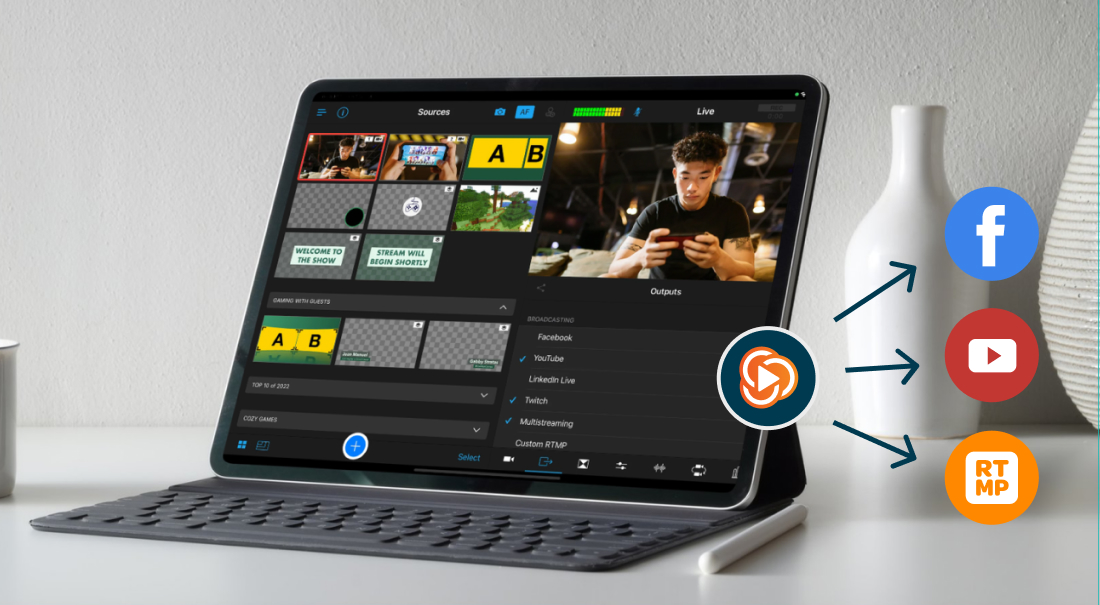
Simulcasting, also known as “multistreaming,” means going live on more than one platform at the same time. “Simulcasting” is the older broadcast word, and “multistreaming” is what we say in the age of the internet.
You livestream, and your audience watches you on YouTube, Facebook, Twitch, your website, a private event page, or any of the dozen public and niche livestreaming platforms, at the same time.
How does simulcasting work?
If you want to multistream, you’ll need a software or hardware encoder. This is a tool that takes your camera and microphone outputs, encodes them, packages them, and sends them to various livestreaming platforms destinations at the same time.
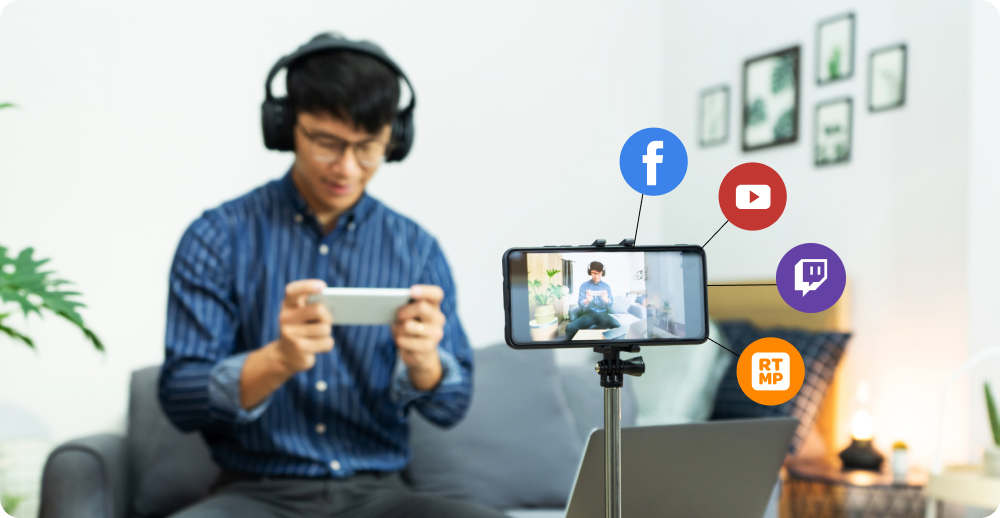
Let’s take a closer look at each option:
Software encoders
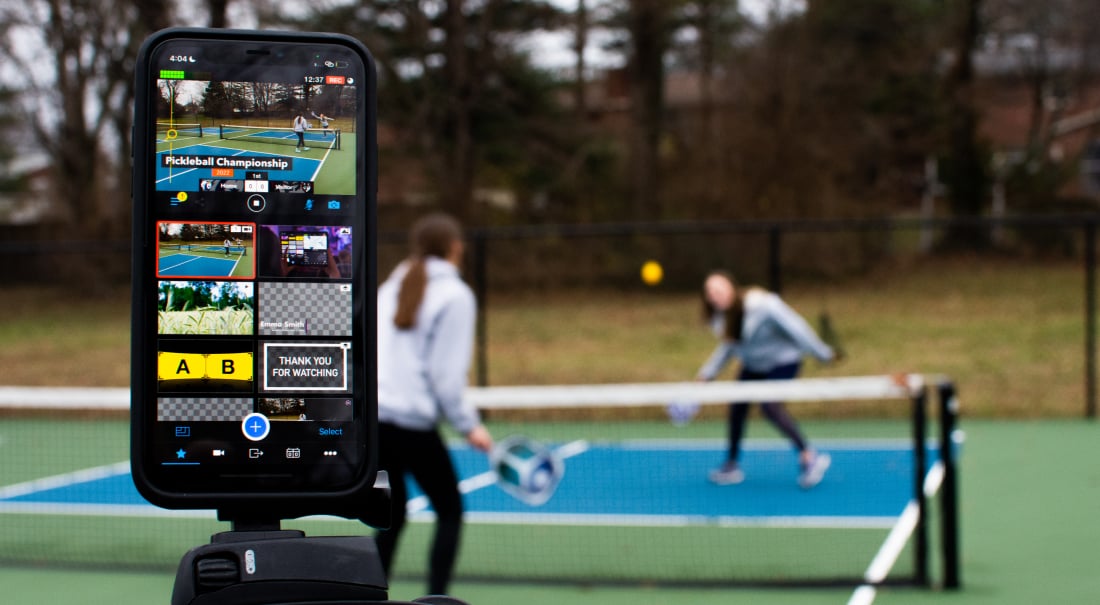
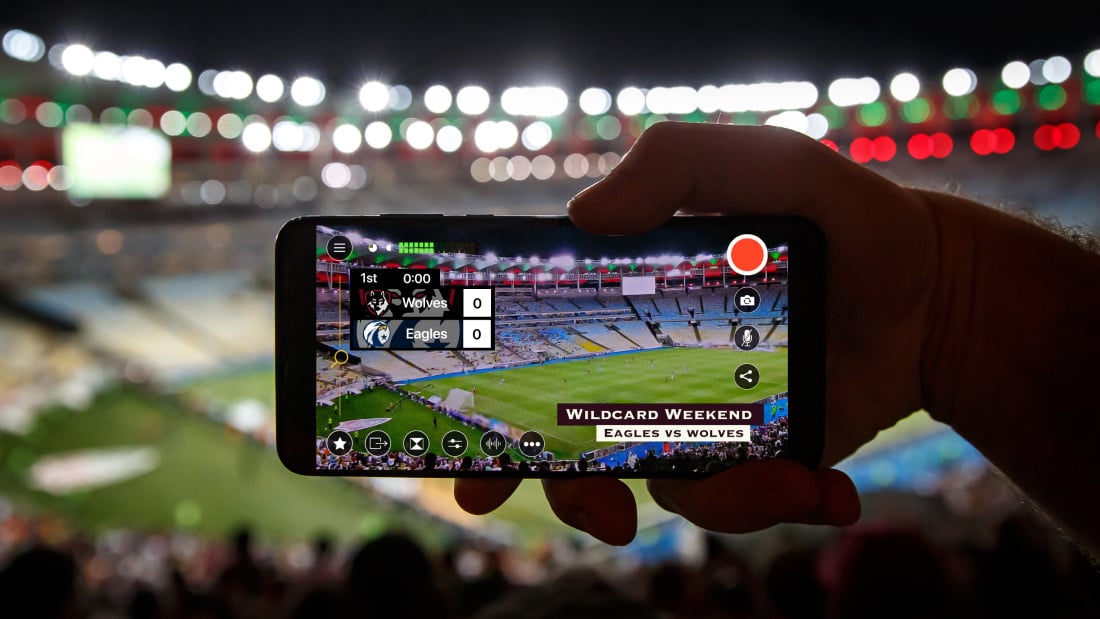
A streaming app like Switcher is the easiest way to simulcast.
It’s a good fit if you’re a church volunteer, solo creator, teacher, small business, or someone who doesn’t want to become a part-time broadcast engineer. With a streaming app like Switcher, you choose your livestreaming destinations and go live everywhere at once.
Switcher is designed to make simulcasting easy, with built-in tools for cameras, graphics, video assets, and audio, and the simple dashboard gives you a repeatable workflow you can use again and again.
Read our guide to successful multistreaming.
Hardware encoders
These are more expensive and more complicated.
However, they’re a good option if you’re a large organization with a budget to match, have a dedicated production team, or run high-production events like conferences.
Platform integrations
Some encoders provide direct integrations with online platforms. For example, Switcher has direct integrations with Facebook and YouTube. This means you can connect your account, choose where you want to go live, and start streaming without setting up the connection manually.
However, most encoders won’t connect directly to every platform. In these instances, you’ll need to set up a custom RTMP connection.
What is Real-Time Messaging Protocol (RTMP) in simulcasting?
RTMP sounds like something a network engineer mutters before ruining your afternoon, but in reality, it’s the connection method that tells your streaming tool where to send the video. Think of it like delivery instructions for your livestream.
To send a stream with RTMP, you usually need two things:
- Server URL: This is the address of the platform receiving the stream. Basically, you’re telling your streaming app, “Send the video here.”
- Stream key: This is the unique code your streaming platform generates for your specific livestream, channel, or event. Here, you’re telling your streaming tool to send the stream to this particular event.
Some stream keys are persistent, meaning you can reuse them across multiple streams. Others are one-time or temporary, meaning they only work for a specific live event, session, or time window.
How to set up simulcasting with RTMP
You go to the platform you want to stream to and create a live event. Let's use Instagram as an example.
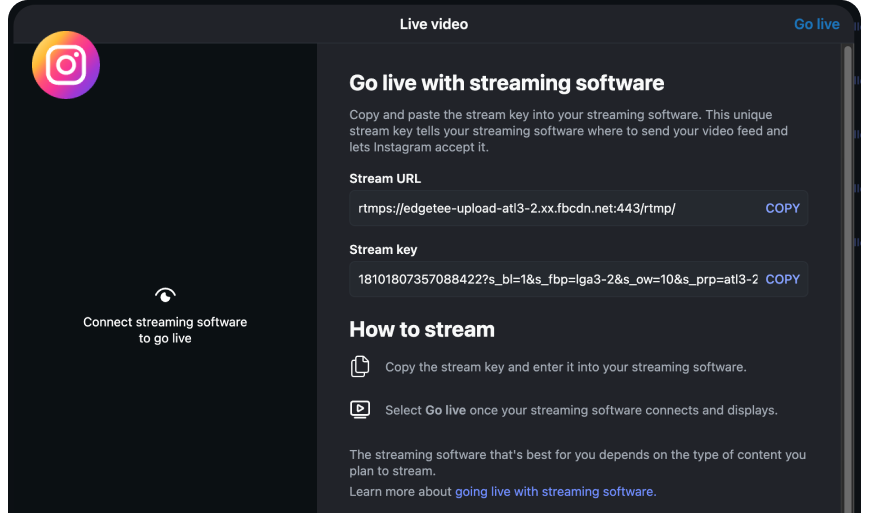
Then you choose how to go live. Most platforms have some version of:
-
“Go live with streaming software”
-
“Use stream key.”
-
“Connect encoder”
-
“RTMP setup”
-
“Stream externally”
When you tell Instagram that you’re using a streaming tool, it’ll generate the stream URL and stream key. They look like this:
-
URL: rtmp://some-platform.com/live
-
Key: abc123yourstreamkey
Now copy and paste those details into your simulcasting tool. In this case, we’re using Switcher, of course. When you’re ready, start the simulcast from your streaming tool.
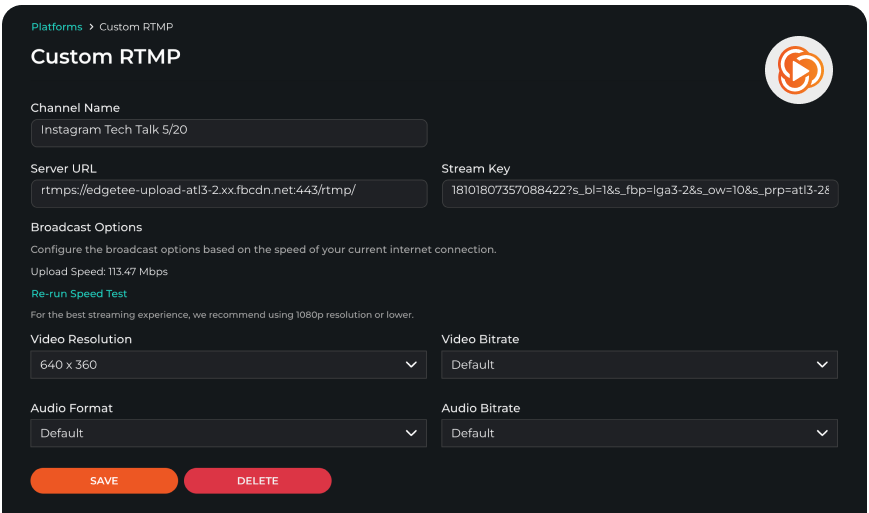
When you’re ready, click “Go live” in your streaming app, and the livestreaming platform receives the signal.
Starting the stream in your tool does not always mean you are live to viewers. On some platforms, it only sends a preview signal. You may still need to click “Go live” on the destination platform before your audience can see it.
Before you go live with Custom RTMP, check:
-
You have the correct server URL.
-
You have the correct stream key. One wrong character in a stream key can send your live video nowhere.
-
The stream key has not expired if it’s a one-time use key.
-
The destination is open and waiting for your stream, if the platform requires a preview step.
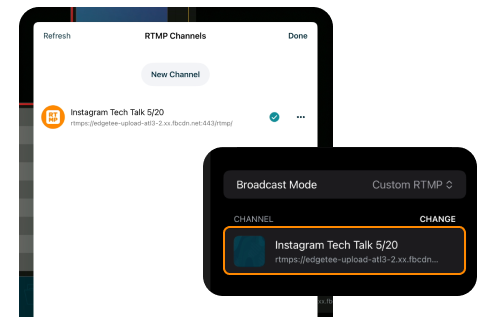
Check out our full guide to become a simulcasting RTMP wizard or visit our help center for Switcher-specific guidance.
How Switcher makes simulcasting easier
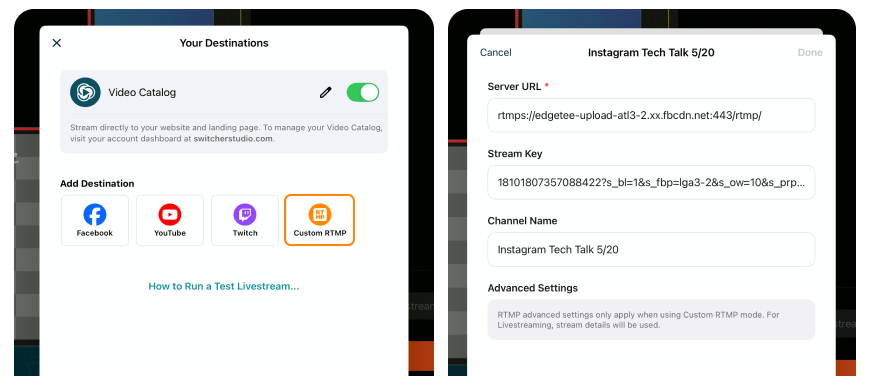
Switcher helps you create one live production and stream it to multiple platforms from one workflow, and gives you the best of both worlds:
Easy direct simulcasting setup for some popular platforms, and a flexible setup for the places that need RTMP. You can also go live to 20 destinations at once.
If you’re streaming a church service, a concert, a class, a sports event, a DJ set, or a private workshop, you should be able to make the stream, choose the destinations, check the details, and go live all in one place. Switcher makes that possible without turning simulcasting into a whole technical side quest.
Try Switcher and find out just how easy it is to simulcast.
Subscribe to the blog
Sign up to receive notifications whenever a new blog post is published. You may unsubscribe at any time.
Share
About the Author