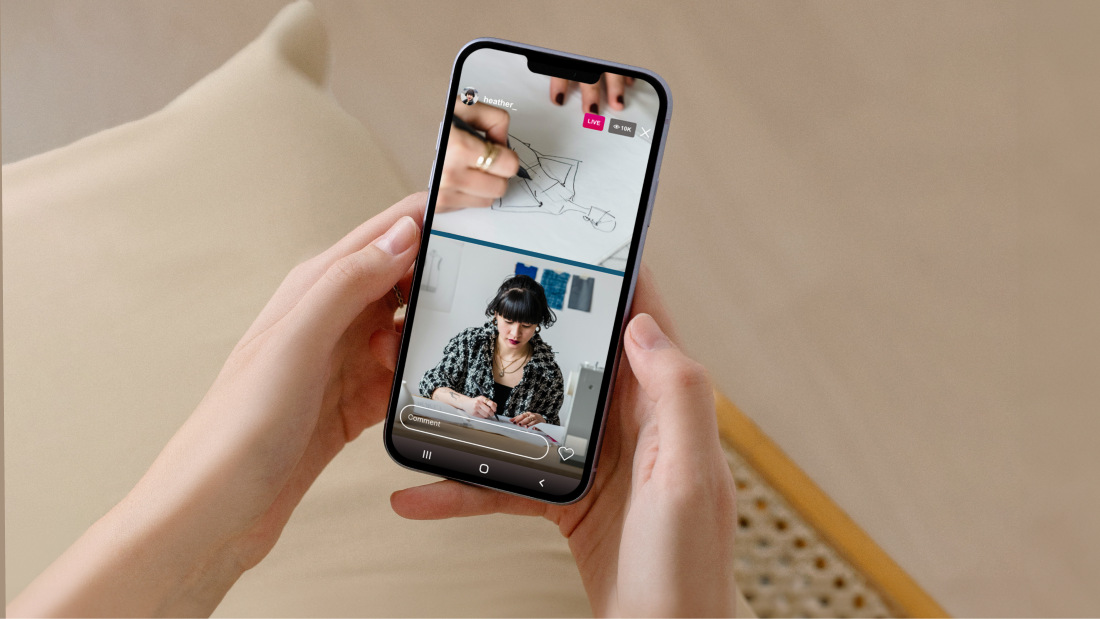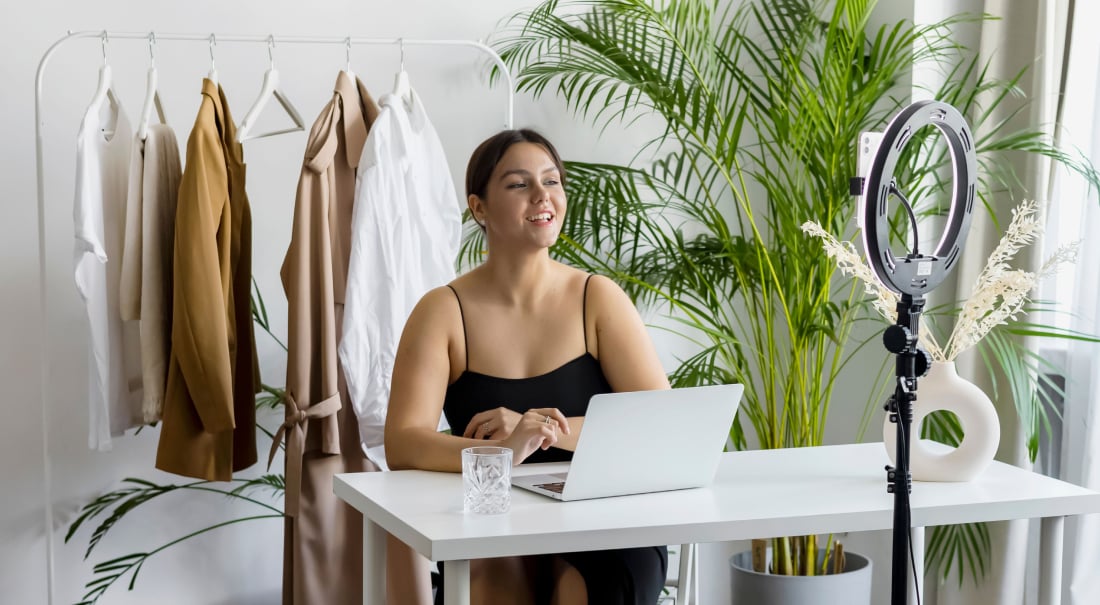
You’re demonstrating something on Instagram Live, but your camera can’t show everything viewers need to see, so you have to choose: Your face or your hands? The whole product or the small detail you’re explaining?
A second camera would be handy.
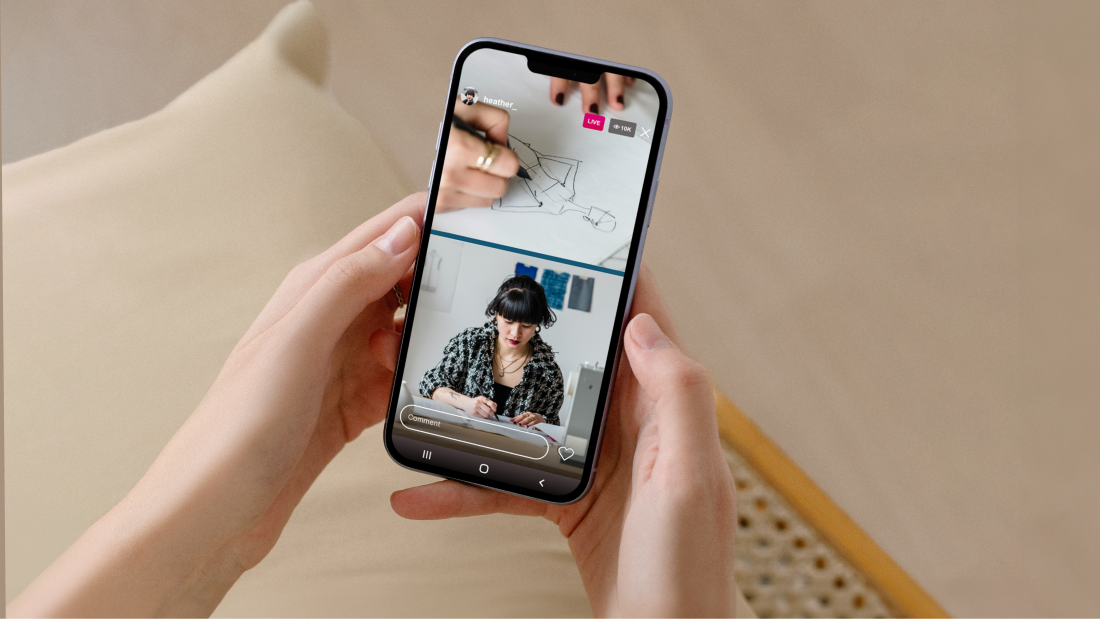
With streaming software, you can bring those extra camera angles into one Instagram broadcast, switch between them, and add helpful text or graphics.
You can also send the same show to other platforms while your Instagram followers watch where they already follow you.
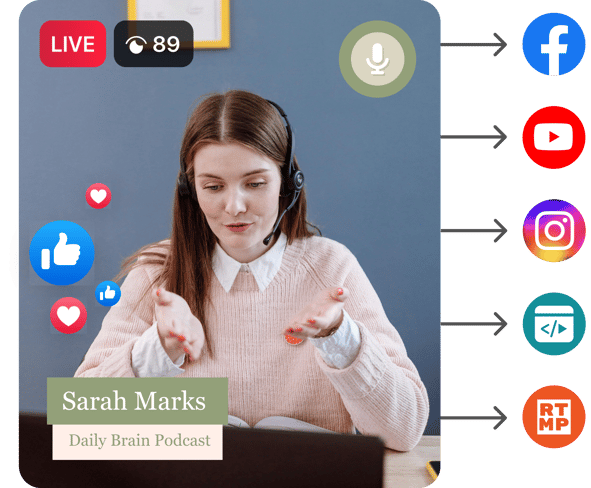
So, here's how to build a setup around what you want to share, whether that’s a two-camera tutorial, a conversation with guests, or a show streaming to several platforms.
What does streaming software add to Instagram Live?
Streaming software brings your cameras, audio, and visual elements together. As you present, you choose which view or layout goes live. Instagram receives that production as one broadcast.
For example:
-
For a tutorial, you might introduce a step on camera, then switch to an overhead view while demonstrating it.
-
For an interview, you could display each guest’s name before bringing everyone into a shared layout.
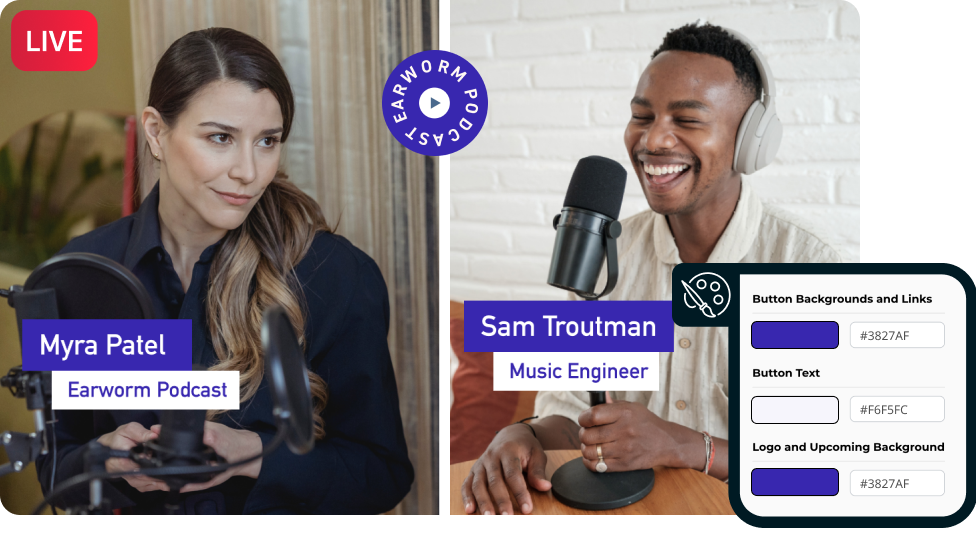
Two capabilities are especially useful:
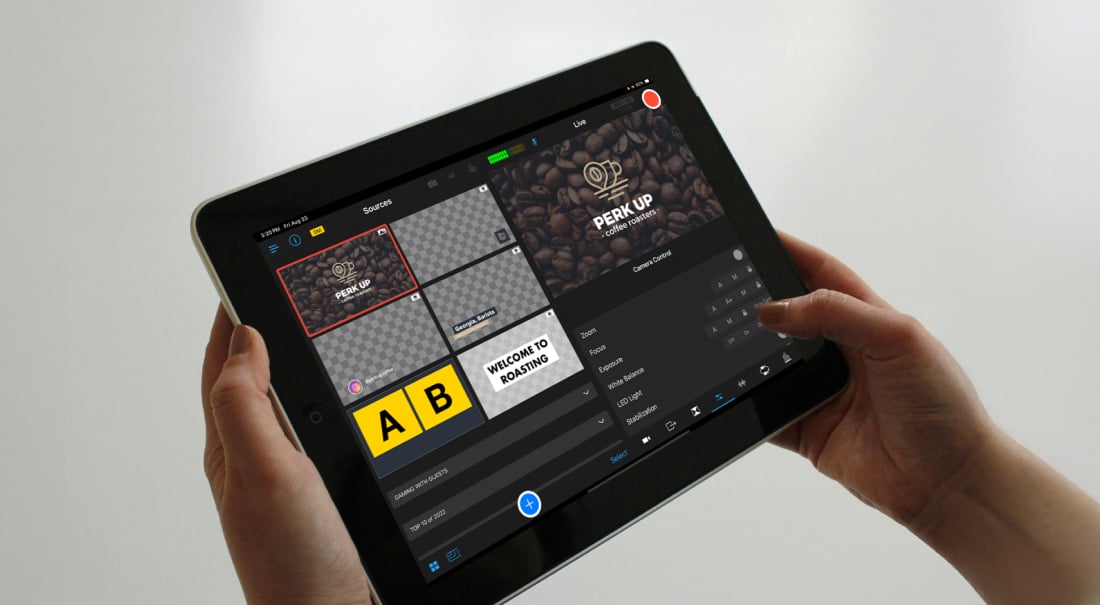
- Multicamera: Using multiple camera sources in one production and switching between their views.
- Multistreaming: Sending one production to multiple destinations simultaneously.
We’ll use Switcher for the setup below. Start with the essentials, then add the views and destinations your show needs.
What do you need for this Instagram Live setup?
For this setup, you’ll need:
-
A compatible Apple device running Switcher: Your iPhone, iPad, or Mac controls the show.
- A reliable internet connection: Test it where you’ll actually broadcast.
-
Cameras or compatible devices to capture other angles: You can use your main control device as one camera. Then, connect other Apple devices, Android devices (via the Remote Camera App, HDMI cameras, or even NDI cameras to create your simple multicam studio.
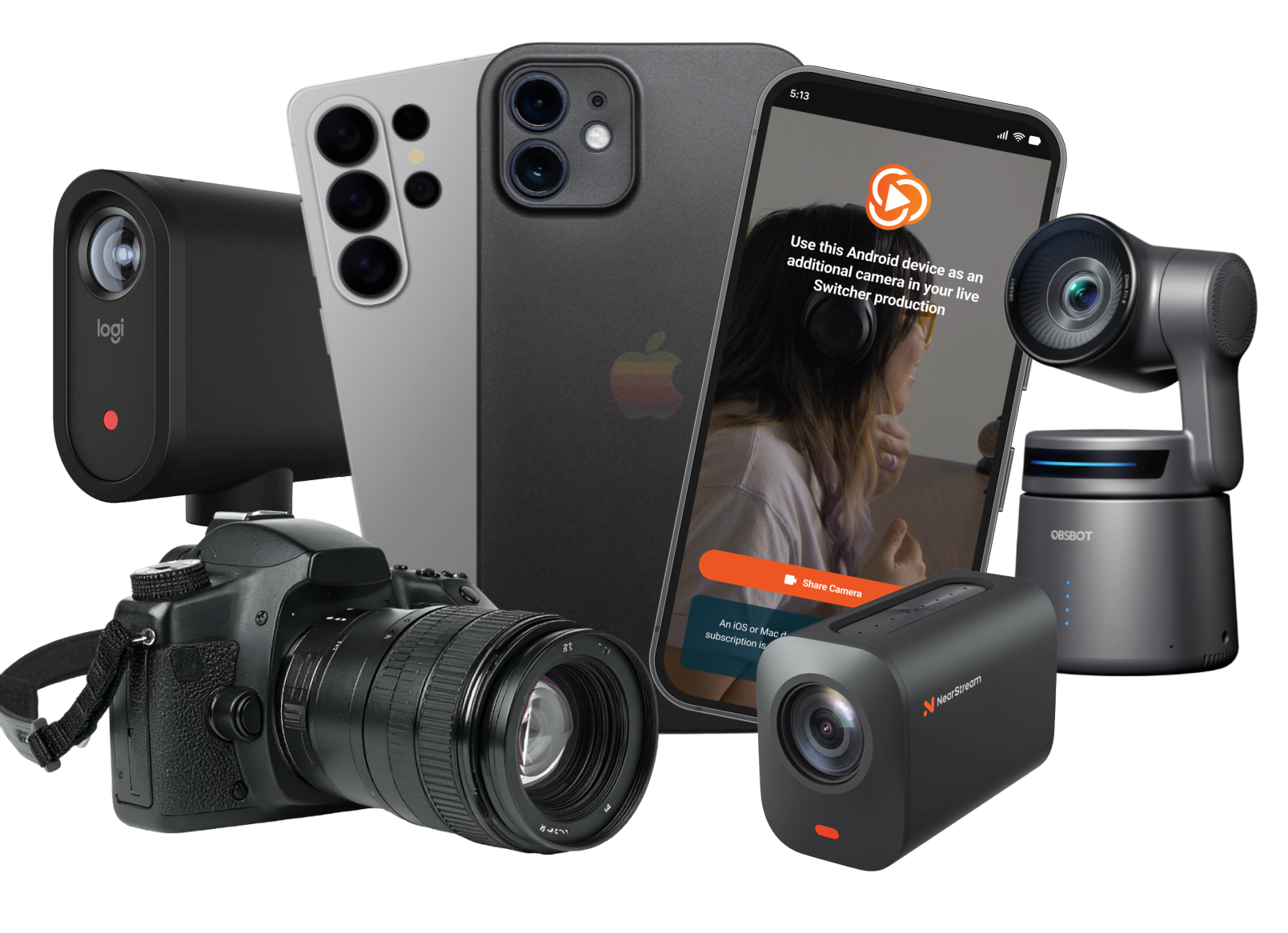
A stable mount and access to power make things easier. An external microphone may help, too, depending on where you’ll be speaking. You can decide on those additions once you know what you need to show.
Before planning your session, check Instagram’s current Live eligibility requirements. You’ll also need to complete the account authorization when connecting Instagram to Switcher.
How to connect Instagram to Switcher
Connect your Instagram account before your first broadcast. Once authorized, you can select it again for future sessions.
To prepare an event in the Switcher app:
-
Open your studio. Choose Horizontal or Vertical. For an Instagram-first broadcast, choose Vertical.
-
Open Outputs and select Livestreaming as the Broadcast Mode.
-
Tap New Event, then Create New Event.
-
Select Instagram. If prompted, connect your Instagram account and follow the authorization steps.
-
Choose any additional destinations you want to include, then tap Next.
-
Complete the event details and select Create Event.
You can also connect Instagram beforehand through Platforms in the Switcher dashboard.
Already streaming through Instagram Live Producer? The direct integration replaces the step of copying a stream key into Switcher for each broadcast.
Creating the event prepares your broadcast. You’ll start it when your cameras, audio, and other elements are ready.
.png?width=823&height=428&name=1a%20livestreams%20in%20front%20(1).png)
How to start a multicam Instagram Live
You can start a multicam Instagram Live by connecting cameras to Switcher, tapping between their views, and broadcasting the result to Instagram.
Your followers see one Instagram Live, with whichever camera view you choose.
Start with two angles that show different things
E.g. For a product demonstration, try:
| Camera | What it shows | When it helps |
|---|---|---|
| Presenter | You speaking to viewers | Introductions, explanations, and answers |
| Detail | The product or work surface | Demonstrations and small details |
The same arrangement works for most things: cooking, crafts, and lessons:
-
A guitar teacher might show their face and fretting hand.
-
A maker might show the workbench and a close-up of the next step.
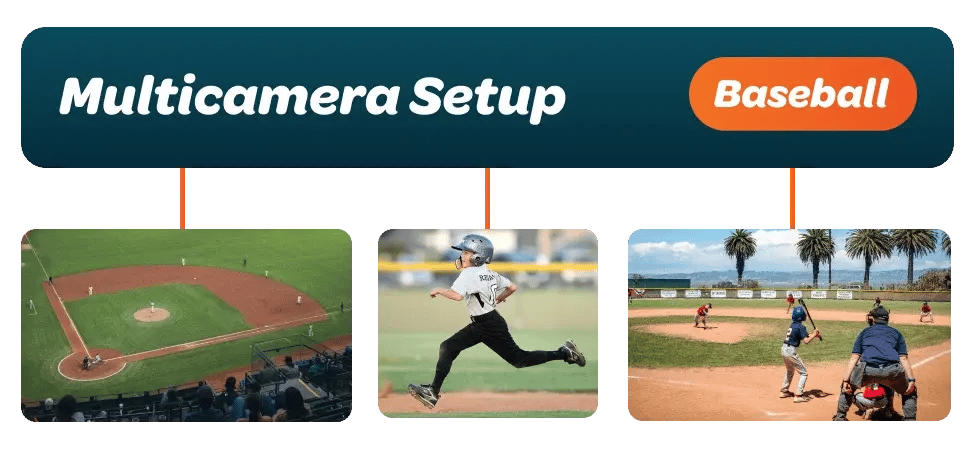
Position each camera before the broadcast. Can viewers see the action without your hands blocking it? Can you reach your controls without leaning out of the presenter shot?
Two useful views are enough to get started. Add another when there’s something else your audience needs to see.
Connect your camera sources
To add another iPhone or iPad as a camera:
-
Install Switcher on the iOS devices you’ll use and connect them to the same wireless network.
-
On the additional camera device, open the app and tap Share Camera or Screen, then Share Camera.
-
On your main device, open the Inputs tab.
-
Tap the additional device’s name to enable it as a camera source.
-
Approve the connection on the camera device if prompted.
The camera will appear in your Sources panel. Repeat for any other camera devices you want to use.
For an Android camera source, install Switcher Remote Camera and follow the Android setup guidance. You’ll still run the show from your main Switcher device.
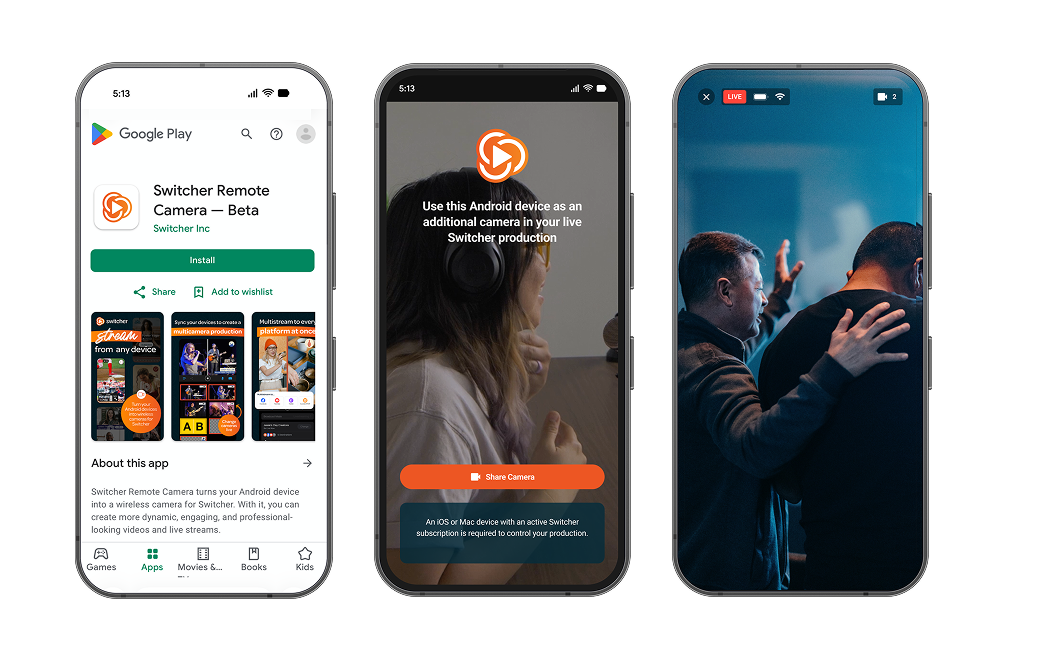
Test the connection with the cameras in their final positions. Two phones working beside each other is a good start, but your overhead camera needs to stay connected from the workbench, too.
Tap a camera view to show it live
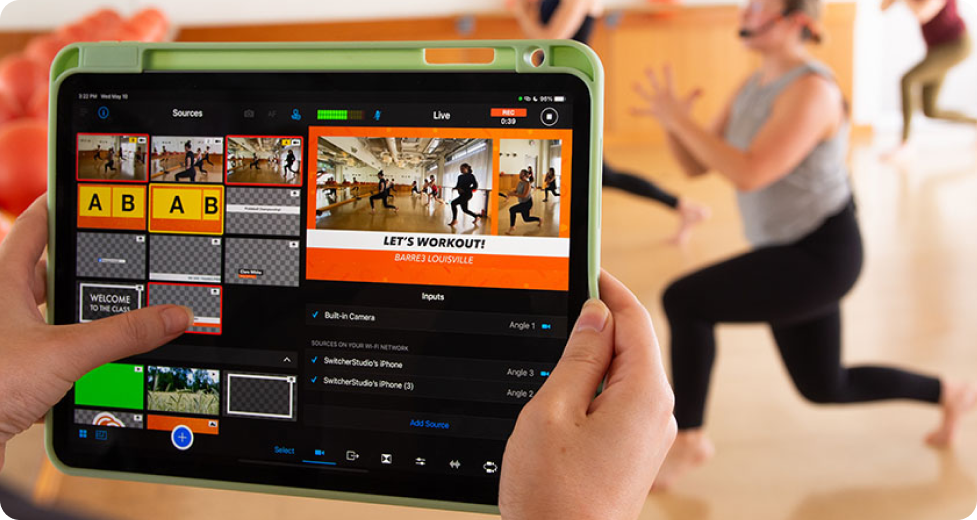
Once your cameras are connected, tap a camera view in Switcher to send that angle into your live broadcast.
Introduce the product on your presenter camera. Tap the detail view when you start demonstrating it. Give viewers time to follow the action, then return to the presenter when you address a question.
Let the content guide the changes. If the close-up is showing exactly what someone needs to see, stay there.
Choose layouts and guests for your Instagram Live
Switching cameras shows one angle at a time. A combined layout lets viewers see multiple sources together.
The right choice depends on what deserves the screen space.
Show two views when both are useful
A full-screen detail shot makes small objects easier to inspect. A combined layout can keep you visible alongside the demonstration.
Try both with the same action. If the detail becomes too small in the combined layout, give it the full screen when it matters.
For an interview, a shared layout establishes the conversation. Individual views can focus attention on the speaker. Think about what helps someone follow the exchange.
Choose a format around your main audience
Switcher uses one orientation for the broadcast across your selected destinations.
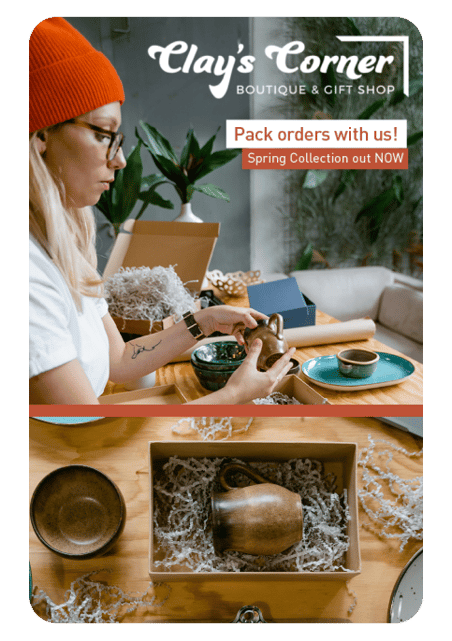
If Instagram is your priority, choose Vertical. Your YouTube or Facebook broadcast will also be vertical. If you choose Horizontal, that format is sent everywhere, with Instagram showing its vertical center crop.
Choose the format that best serves your main audience, then check your camera views and graphics with the other destinations in mind.

Check every camera view and layout. A wide shot might comfortably include two speakers while losing one of them in the vertical crop.
Keep names and graphics inside the visible area, too. Then check your preview at phone-screen size to make sure the text is readable.
Add information that helps people follow along
Your logo can give the Live a familiar look. Text can help viewers understand what’s happening, especially when they join halfway through.
Useful additions include:
-
A product or topic name
-
A speaker’s name and role
-
The step you’re demonstrating
-
A short instruction or reminder
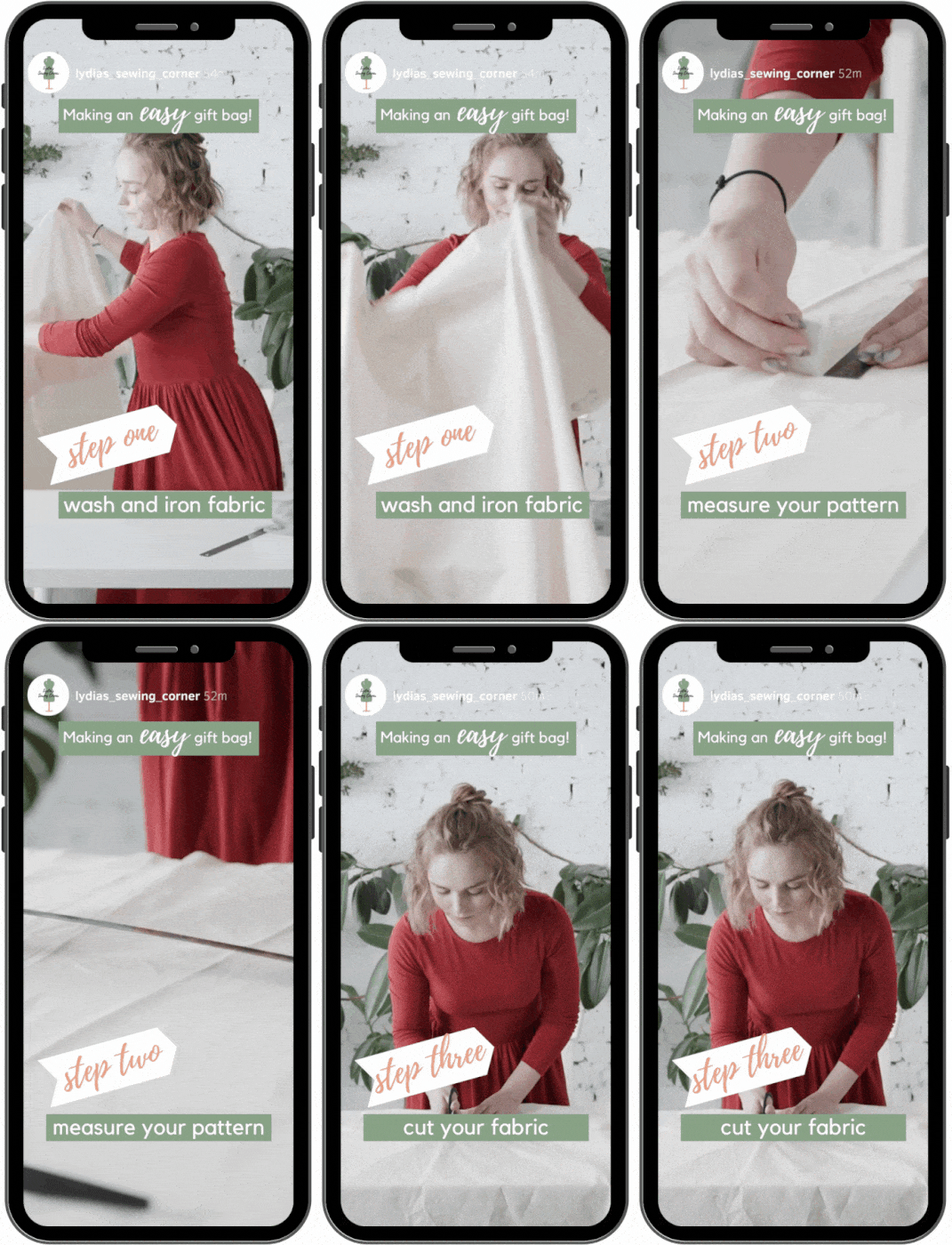
You don’t need all of them on screen at once. Show the information when viewers need it, and leave room for the demonstration.
Bring remote guests into the show
Switcher lets you invite up to five remote guests into your production. Their video and audio become part of the broadcast you send to Instagram.
These guests join through Switcher. That’s separate from Instagram’s native feature for inviting other accounts into a Live.
You can introduce guests with names on screen, bring them into shared layouts, and switch between the conversation and your demonstration cameras.
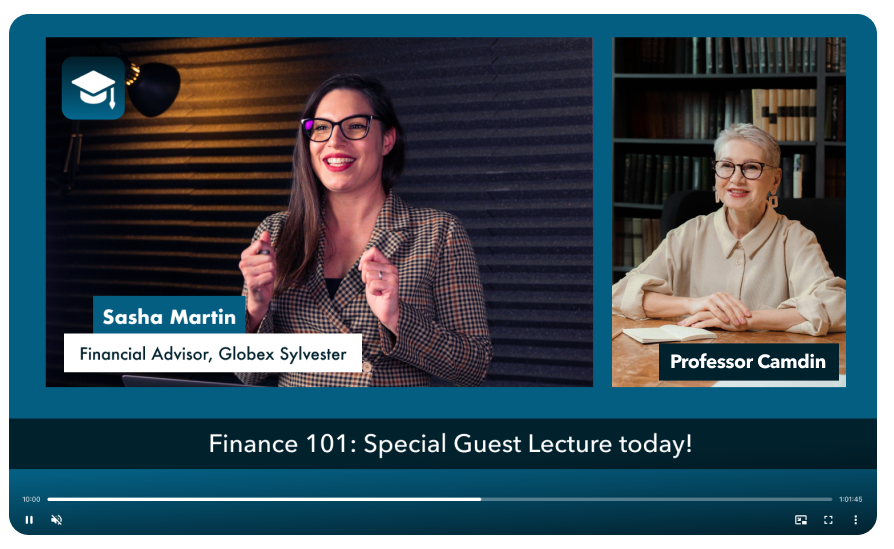
For example, a collaborator could explain their technique while you show it up close.
Once you’ve decided what your Instagram viewers will see, you can choose whether to share the same show elsewhere.
How to multistream to Instagram
Switcher supports up to 20 simultaneous destinations, depending on your plan. These can include Instagram, Facebook, YouTube, Twitch, and supported custom RTMP destinations.
To multistream to Instagram with Switcher, select Instagram and at least one other destination during event setup.
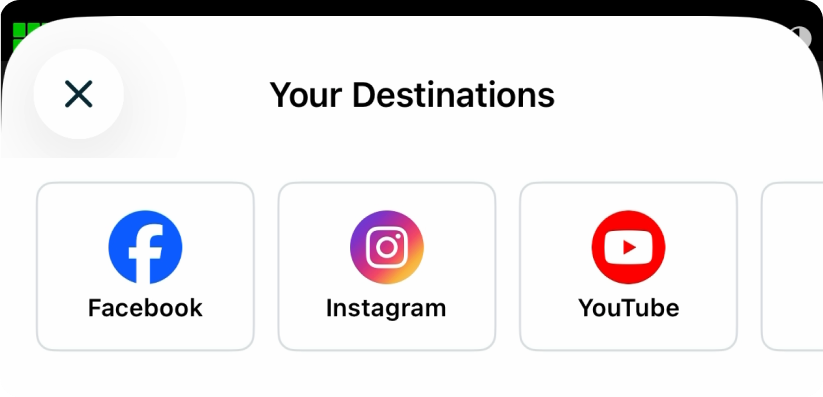
This is useful when you already have audiences in different places. You manage one show while viewers watch on their preferred platform.
Remember where each audience is watching
Give each audience a clear route to the resource or next step. Also decide how you’ll follow questions across destinations.
For example: “Visit the link in my Instagram bio” works for Instagram viewers. Someone watching on YouTube may need a different instruction.
If you’re presenting alone, leave pauses for comments. If someone is helping, they can collect questions while you keep the show moving.
Check your setup before going live
Your cameras, layouts, and destinations are ready. Time for a short rehearsal.
Check where your sound comes from
Switcher uses the main switching device’s built-in microphone by default. Remote cameras provide additional views, but they aren’t selectable as your audio source.
You can connect an external microphone or mixer to the main device instead. The adapters and cables depend on your equipment, so check the audio connection guidance for your setup.
That distinction matters when positioning cameras. A phone beside your hands may provide the close-up, but your voice still needs to reach the microphone supplying your sound.
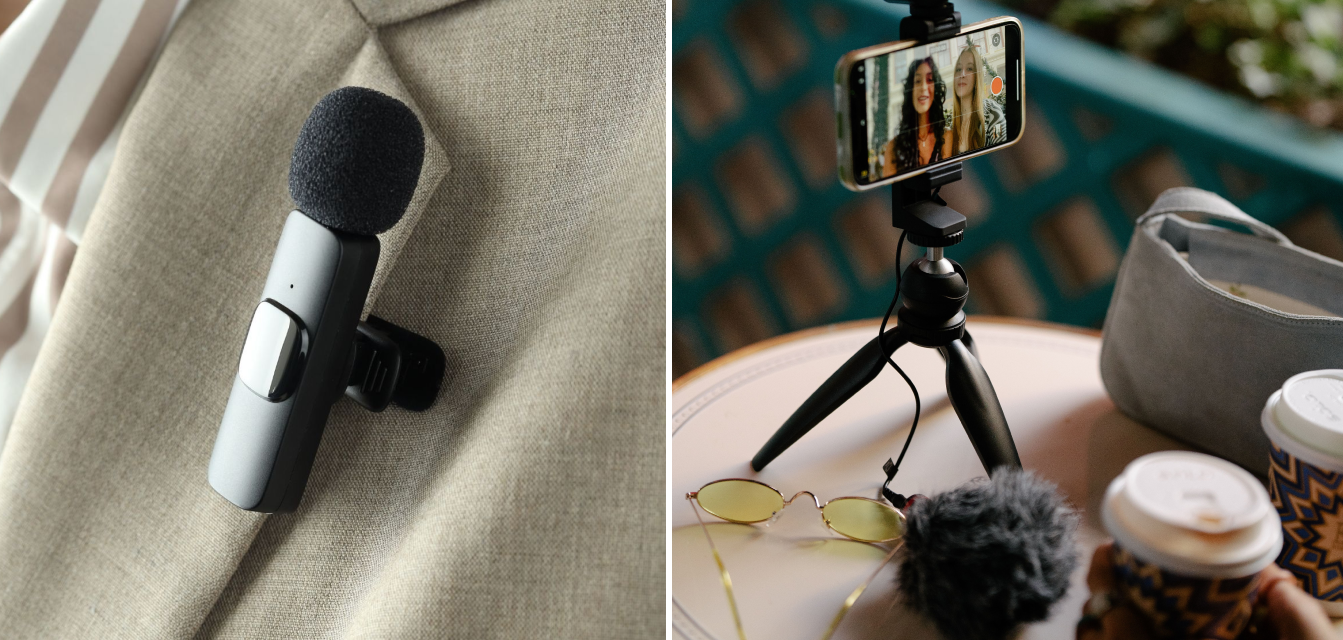
Speak from the positions you’ll use during the show. Turn toward the demonstration, handle the product, and switch views while listening.
Check for distant speech, handling noise, and echo. Include remote guests in the sound check if they’re joining you.
Check out our full guide on audio setups to learn more.
Rehearse a small part of the show
Before broadcasting, run through a short sequence in Switcher:
-
Introduce the topic on your presenter camera.
-
Tap another camera view or bring in a guest.
-
Display a layout or graphic.
-
Check that you can move between those elements comfortably.
You’ll quickly notice the useful adjustments: move a camera, enlarge a label, or put the controls somewhere easier to reach.
Once you’re ready, start your event using Switcher’s red button. If someone is helping, ask them to check the live picture and sound on the destinations you’ve selected.
To learn more, learn how to create a livestreaming plan.
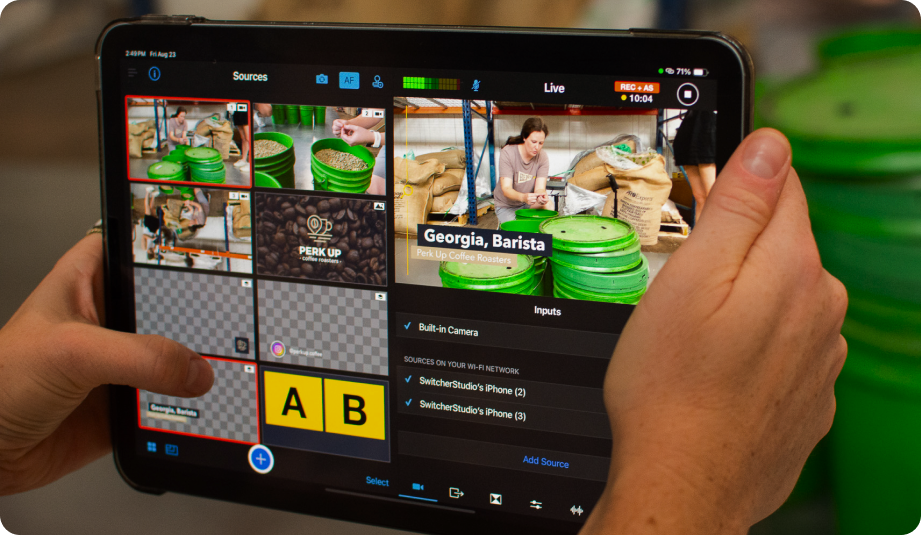
Try your next Instagram Live with Switcher
Your first setup can be a presenter camera and a close-up. As you get comfortable, you can add layouts, guests, or destinations that help you share more.
Choose a short piece of content, prepare the views it needs, and practice running them together. You’ll know your setup before your audience arrives.
Start your free Switcher trial, connect Instagram, and give it a try for your next Live.
Subscribe to the blog
Sign up to receive notifications whenever a new blog post is published. You may unsubscribe at any time.
Share
About the Author

River Law is a storyteller who writes for humans, with heart. Whether it’s helping global brands find their voice or giving startups the words to grow, River brings empathy and clarity to every project. An Englishman who calls California home, River finds his rhythm outdoors with his family.
All posts by River Law