
It's time to add another three-letter acronym to your livestreaming vernacular: NDI. NDI livestreaming sounds technical, but the idea behind it is simple.
This guide covers what NDI livestreaming is, what it requires in practice, who can benefit from it, and how to set it up.
What is NDI livestreaming?
Network Device Interface (NDI) is a protocol. You can think of it as a language. NDI livestreaming is when your camera and livestreaming software talk to each other over Wi-Fi or ethernet, not through physical HDMI or SDI cables.
NDI vs. NDI|HX livestreaming
NDI and NDI|HX use the same technology, but produce different results.
NDI livestreaming sends high-quality video with barely any compression (the process of shrinking a video file down, which usually costs you some quality).
It produces crisp and clear videos with very low latency (the delay between something happening on camera and it showing up on screen).
NDI requires a gigabit of ethernet to run well.
NDI|HX livestreaming produces compressed (less crisp, softer) video and introduces latency to your livestream. That said, you still get excellent video, which is sufficient for most livestreamers.
NDI|HX livestreaming uses roughly a tenth of the bandwidth of full NDI, roughly 8–12 Mbps for a 1080p stream, which means it can run over Wi-Fi and is the more realistic and practical option for home, church, school, and office Wi-Fi.
Do you need NDI livestreaming?
It depends. Answer these questions to find out:
1. What does your livestreaming space look like?
-
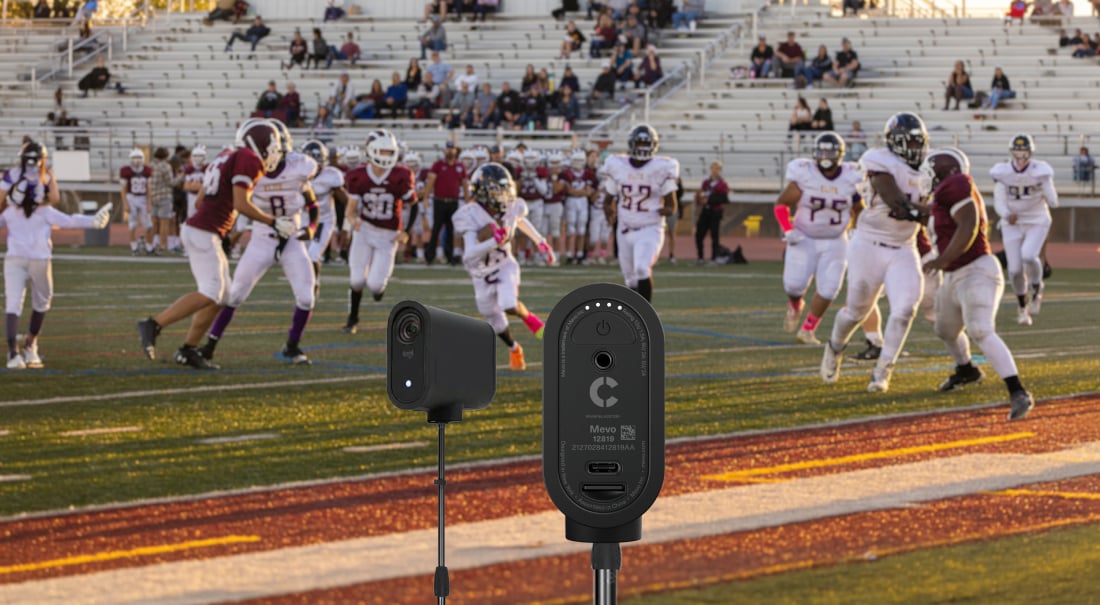
If you're covering a large space, like a stage, a field, or an outdoor news or event shoot, a long cable is often impractical or unsafe. NDI protects your pastor from tripping on cable mid-sermon and children from using it as a jump rope during track and field day.
-
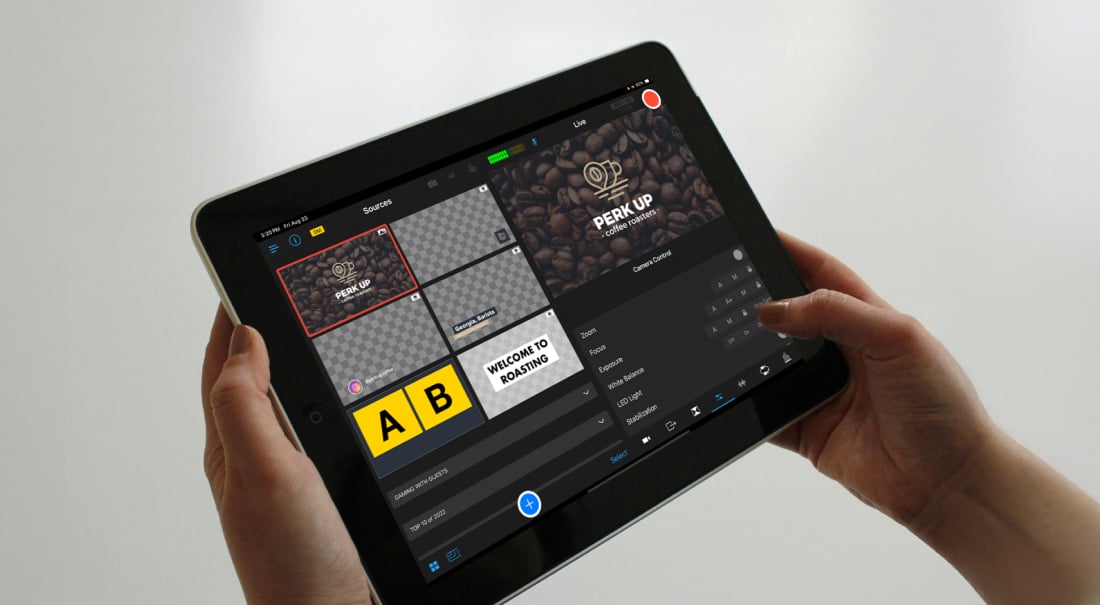
If you're mounting a PTZ camera-to-reach in a ceiling or press-box position, an NDI-enabled model gets you that angle without running a cable up there. In Switcher, you can zoom and focus it from your production device, too, so nobody has to climb up to fix the shot.
-
If you're doing your own version of a tiny desk concert, a yoga class in a small room, or you just need a desk and a camera, NDI isn't necessary.
2. How latency-sensitive is your content?
-
If your content is latency-sensitive — a live band with in-room sound, a worship service with a live band and in-room screens, sports or esports commentary synced to the action — you can benefit from full NDI livestreaming.
-
If your content isn't latency-sensitive — a single speaker, a lecture, a product demo, an art or craft stream — you probably don't need NDI livestreaming. Here's Switcher's guide to different livestreaming setups.
-
If your content is latency sensitive but you don't have the network or the gear for full NDI livestreaming, a direct HDMI or wired USB connection skips the network step entirely and gets you close to zero delay. Check out Switcher's guide to low-latency video streaming for ways to reduce delay.
How reliable is your internet connection?
Even if you want NDI livestreaming, your internet or network might not support it. Livestreaming in general requires stable upload speed — check out Switcher's guide to livestreaming bandwidth to calculate what your setup actually needs.
NDI adds a separate demand on top of that: it can need up to a gigabit of local network bandwidth for multiple sources — a gigabit is 1,000 Mbps, and that's 50 to 100 times more bandwidth than the 10–20 Mbps upload speed most homes, churches, and studios actually have.
How to set up NDI livestreaming
-
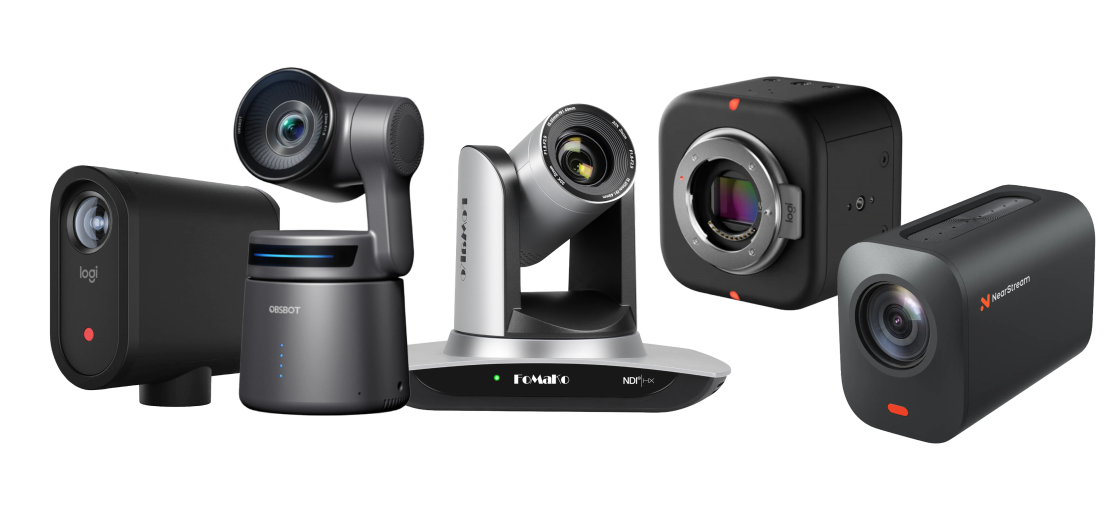
Confirm your cameras are NDI-licensed hardware.
-
Put the camera and your production device on the same network:
-
Put your camera and switcher on the same subnet, not just the same Wi-Fi name. This mostly matters if you're livestreaming at a venue where IT manages Wi-Fi for different types of access. Think guest Wi-Fi at a hotel, employee Wi-Fi at work, or admin Wi-Fi at school.
-
To check:
-
Open Wi-Fi settings on both your camera and the device running your livestreaming software.
-
Compare their IP addresses. Devices on the same subnet share the first three numbers of their IP address. For example, 192.168.1.5 and 192.168.1.12 are on the same subnet, but 192.168.1.5 and 10.0.0.5 are not.
-
If the numbers match, you're on the same subnet. If they don't, your devices are on different subnets, and that means your camera and your production device won't be able to talk to each other and your camera won't show up in your livestreaming software's source list, even though it looks connected.
-
Ask the network administrator to put your camera and your production device on the same network.
-
Turn off AP or client isolation. This applies to unmanaged networks, including your home Wi-Fi. Most routers ship with a setting, sometimes called "AP isolation" or "client isolation," designed to keep devices on the same network from seeing or accessing each other for security reasons. Isolation can block your camera and your production device from talking to each other even when they're on the same network and the same subnet. To turn it off:
-
Log into your router's admin settings by typing its IP address into a browser, or through the router's app.
-
Look under Settings for "AP isolation" or "client isolation."
-
Switch it off.
-
Stream on 5GHz Wi-Fi. This applies on both unmanaged and managed networks. Most routers broadcast two bands: 2.4GHz and 5GHz. 2.4GHz signal reaches farther and passes through walls better, so it stays connected at a greater distance from your router, but it's more crowded and carries less bandwidth. 5GHz has shorter range but far less interference and more bandwidth, which is what NDI livestreaming needs.
-
To switch:
-
Log into your router's admin settings (same place as the isolation setting above).
-
Look for your Wi-Fi network list — many routers show separate names for the 2.4GHz and 5GHz bands, or a setting to prioritize one.
-
Connect your camera and production device to the 5GHz network specifically.
-
Set a static IP for your cameras. Every time you connect a camera or device to your network, it gets assigned an IP address, and you won't be able to reconnect it. By default, that address can change each time the device reconnects. If that happens mid-stream, your camera drops off your source list. Here's how to fix it:
-
Log into your router's admin settings (same place as the settings above).
-
Find the DHCP reservation or "address reservation" section.
-
Select your camera from the list of connected devices, or enter its MAC address, and assign it a fixed IP address.
-
Use a gigabit switch, not just a gigabit router. If you're using more than two NDI cameras with ethernet cables, you need a network switch. A network switch is a small box with multiple ethernet ports that lets you wire several devices to your network. You need a switch that can handle the internet speed — a gigabit switch for gigabit needs. Here's how to check if your switch can handle it:
-
Look at the label or spec sheet on your switch: it should say "gigabit" or list "10/100/1000."
-
If it only lists "10/100" with no "1000," it's not gigabit, and it'll cap every camera plugged into it well below what full NDI needs.
-
Open your livestreaming software's source list. Make sure you're using livestreaming software that supports NDI, like Switcher. If you've set up your network correctly, your NDI livestreaming software will auto-discover available NDI sources on your network.
-
Start your livestream as usual. Read Switcher's ultimate live streaming checklist for everything else to check before you go live.
How to create an affordable NDI livestreaming setup
You don't need 5 NDI-enabled cameras to create a polished multicam livestream. Let's face it: the gear is expensive and the network demands are impractical for most creators.
If you absolutely need NDI livestreaming and you may only need one NDI-compatible camera, the phones, tablets, and other cameras you already have.
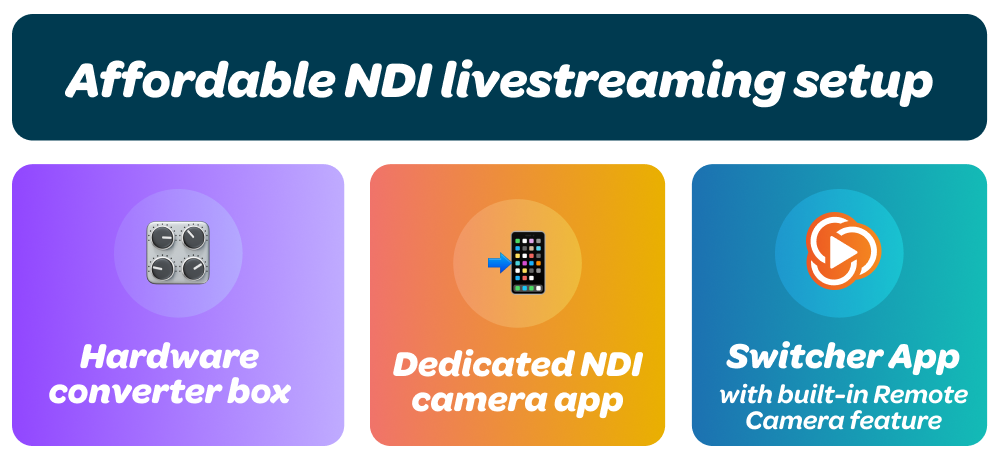
To do that, you'll need a way to bring NDI and non NDI sources together in the same production. You can do this in a few ways:
-
A hardware converter box. Takes a non-NDI camera's HDMI output and turns it into an NDI source.
-
Cost: A one-time $150–400, depending on the brand.
-
How to do it: Plug the camera's HDMI cable into the converter, then an ethernet cable from the converter into your network.
-
Drawback: Most converter boxes require a wired connection and don't offer Wi-Fi conversion.
-
A dedicated NDI camera app on your phone. Makes your phone show up in your livestreaming tool's source list right alongside your NDI cameras.
-
Download and open the NDI camera app on your phone. Give it permission to access your camera and hit "broadcast."
-
In your production software, open the source list and add a new NDI source.
-
Select your phone from that list.
-
-
Cost: $0–20 per month, depending on the app.
-
How to do it:
-
Drawback: NDI camera apps use your phone's processor and battery to encode NDI, which drains your phone's battery and heats it up during long streams. This method also adds another piece of software to your livestreaming stack and makes it harder to manage and troubleshoot.
-
Switcher's built-in Remote Camera feature. When you use Switcher, you don't need a separate NDI app. On an iPhone or iPad, Remote Camera comes built into the Switcher app itself (Android phones use the Switcher Remote Camera app), connects over Wi-Fi, and shows up as a source right alongside your NDI cameras.
-
Cost: Included with your Switcher subscription. No separate app or plugin to buy.
-
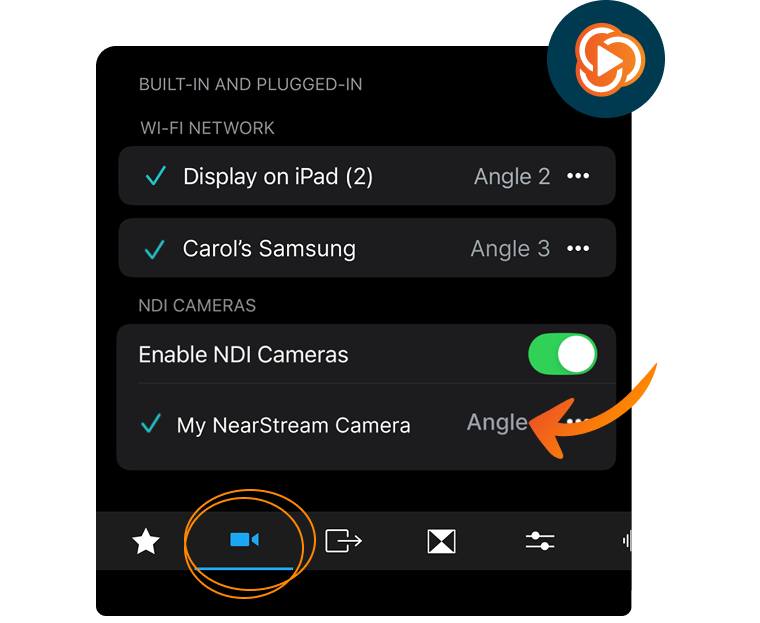
How to do it: Open Switcher on your main production device, go to the Inputs tab, and add your phones, non-NDI cameras, and NDI cameras as video sources (for NDI, turn on Enable NDI Cameras first). No fuss, no faff.
Check out Switcher's guide to building a multicam workflow for more on putting a setup like this together.
Is NDI livestreaming worth it for you?
If you're pushing out well-produced livestreams with the phones, tablets, and other cameras you already have, NDI livestreaming becomes a plus, not a must.
But if you decide to upgrade to NDI livestreaming to fill a quality gap or eliminate a logistics difficulty, then use Switcher to get the most out of it.
Switcher supports NDI-licensed cameras alongside the iPhone, iPad, Android, and HDMI sources you're likely already using.
You can add an NDI camera to your next production without redesigning your entire setup, and switch between all of your sources from the same simple interface. And with Switcher 13.20.0 or later, you can control zoom and focus on your NDI cameras right from the app, plus exposure on cameras whose hardware supports it.
Try Switcher for free and see how an NDI camera fits into the setup you're already running.
FAQ
What are common NDI livestreaming problems, and how do you avoid them?
-
The camera doesn't show up as a source. Almost always a network issue. Confirm the camera and your production device are on the same network.
-
Video looks fine in preview but chokes when you go live.
Usually bandwidth contention issues: something else on the network is competing for the same pipe.
What cameras are suitable for NDI livestreaming?
NDI-licensed cameras, like PTZOptics, BirdDog, and OBSbot. Check out our full guide on the best NDI cameras to learn more.
Can I use my phone in an NDI livestream?
You can't do NDI livestreaming with just a phone. But you can use Switcher to mix your phones with your NDI camera.
How much does an NDI livestreaming camera cost?
Entry-level NDI PTZ cameras, like OBSbot, run around $300–500. Mid-range options, like PTZOptics, run $800–2,000. Higher-end cameras, like BirdDog, which support full NDI instead of just NDI|HX, run $1,500–5,000 or more.
Is NDI free to use?
The NDI protocol itself is free. What costs money is the hardware (NDI-licensed cameras, converter boxes) and any software you use to bring those sources into your production.
Does NDI work with any livestreaming software?
Only software built to support it. Switcher and some other tools support NDI livestreaming.
What's the difference between NDI, HDMI, SDI, and RTMP?
HDMI and SDI are cable-based video connections. They need a physical cable run from camera to switcher, which is fine for a fixed, nearby camera and impractical for a camera positioned across a large room or building.
NDI replaces that cable with your network. Same idea — camera to switcher — but it travels over ethernet or Wi-Fi instead of a dedicated video cable.
RTMP is a different thing entirely: it's how your finished, mixed stream gets sent out to YouTube, Facebook, or another platform. Check out our full guide to RTMP livestreaming for more.
What does an NDI and phone hybrid setup look like?
A few examples of what that split can look like:
- A church might use an NDI camera for a fixed wide shot from the back of the sanctuary, and phones for close-up angles on the stage.
- A sportscaster might use an NDI camera for a ceiling-mounted or press-box wide shot of the field, and a phone for sideline interviews and reaction shots.
- A yoga teacher might use one NDI camera for a steady, wide shot of the room, and a phone for a close-up demo angle.
Subscribe to the blog
Sign up to receive notifications whenever a new blog post is published. You may unsubscribe at any time.
Share
About the Author

Eric is growth marketer with a decade of experience in technical SEO, content marketing, paid ads, and brand visibility. Eric takes pride in our customers' success and is always ready to answer their most pressing questions about video production, live streaming, and content creation.
All posts by Eric Sims